





Geofencing in smart locks creates a virtual boundary around your home, enabling the lock to automatically secure or open your door as you arrive or leave. However, issues like missed triggers, false activations, or inconsistent performance can arise. Here’s a quick breakdown of common problems and fixes:
- Auto-Unlock Fails: Ensure your phone’s location services are set to “Always,” Bluetooth and Wi-Fi are on, and battery-saving modes are disabled.
- Wrong Location Triggers: Adjust the geofence radius and verify the GPS pin in your app matches your actual door location.
- Inconsistent Behavior: Check for firmware updates, restart devices, and review app permissions after software changes.
If these steps don’t resolve the issue, professional help may be required to address hardware, network, or installation problems. Locksmiths like Sherlock’s Locksmith in Pittsburgh, PA, can provide on-site expertise to fine-tune your setup and ensure reliable performance.
Geokey Bluetooth Lock Troubleshooting Tips | Step-by-Step Guide
Common Geofencing Problems and What Causes Them
Understanding the challenges with geofencing often boils down to recognizing how specific settings and external factors can interfere with its reliability.
Auto-Unlock Doesn’t Work
When auto-unlock fails, the culprit is often your phone’s settings. Auto-unlock needs to be enabled for each lock individually. A common misconception is that enabling geofencing once applies to all connected locks, but each device requires separate configuration.
To ensure proper functionality, set location permissions to "Always." Without this, the app can’t track your movements in the background, meaning your phone won’t signal the lock when you arrive home. Background tracking must also stay active – battery-saver modes or manually closing the app can disable it. Additionally, some smart locks only link geofencing to one phone per account. If you switch devices without updating settings, the lock may still expect signals from your old phone.
Don’t forget to keep Bluetooth and Wi-Fi turned on. Even if geofencing detects your arrival, the lock can’t receive the unlock command if these functions are off.
Now, let’s address another common issue: inaccurate geofence triggers.
Lock Activates at the Wrong Location
If your lock triggers at an unexpected location – like unlocking when you’re still a block away or sending "you’re home" alerts while you’re at a neighbor’s house – the issue often lies with geofence radius settings or GPS inaccuracies. Adjusting the geofence radius can help. A radius that’s too wide may lead to premature triggers, while one that’s too narrow might not detect your approach at all.
In urban areas, GPS drift can vary by 30–100 feet, leading to delays or premature activations. This becomes even trickier in multi-story buildings. For example, Kwikset notes that geofencing struggles in such environments because it relies on horizontal coordinates and can’t determine whether you’re on the ground floor or several stories up.
Another potential issue is an incorrectly set home address in the app. If your location is pinned to the wrong building or entrance – common in multi-unit complexes – the geofence will activate based on that incorrect point rather than your actual door.
Geofencing Works Inconsistently
Geofencing can sometimes behave unpredictably, working perfectly one day and failing the next. This inconsistency is often tied to aggressive battery optimization settings on your phone, which can pause background tracking until you reopen the app. Switching phones, such as moving from a Samsung Galaxy to a Google Pixel, has also been known to disrupt geofencing automations that previously worked without issue.
App and firmware updates can further complicate things. Many users report geofencing failures following an update or device migration, often requiring them to delete and recreate their geofence settings from scratch.
Network conditions can also play a role. Weak cellular coverage during your commute can delay arrival notifications, while restrictive public Wi-Fi at work may block the background connections needed to send unlock commands. In such cases, manufacturers often recommend switching to mobile data.
These intermittent problems call for a systematic troubleshooting approach, which will be covered in the next section.
Step-by-Step Troubleshooting Guide
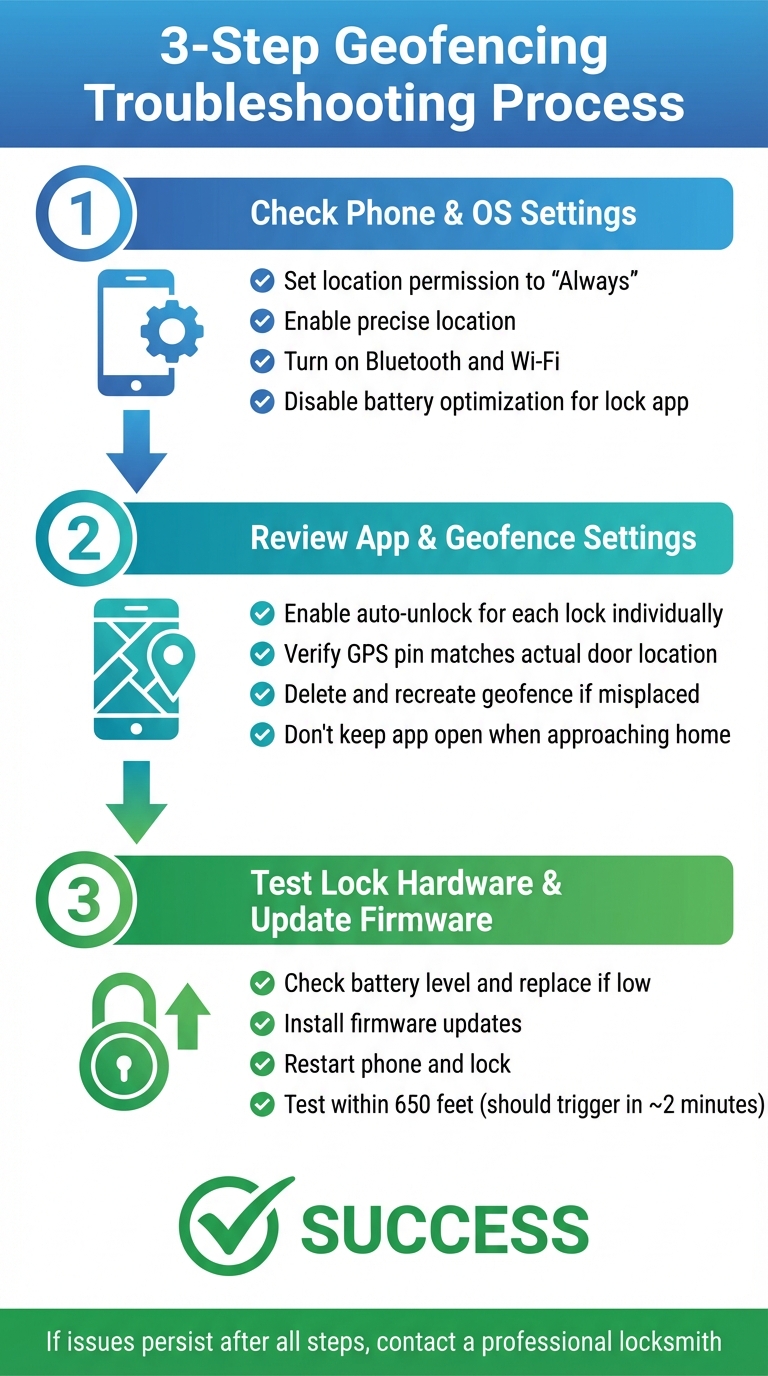
Smart Lock Geofencing Troubleshooting Guide: 3-Step Process
When geofencing isn’t working as expected, it’s time to dig into your phone settings, app configuration, and lock hardware to pinpoint the issue.
Check Phone and Operating System Settings
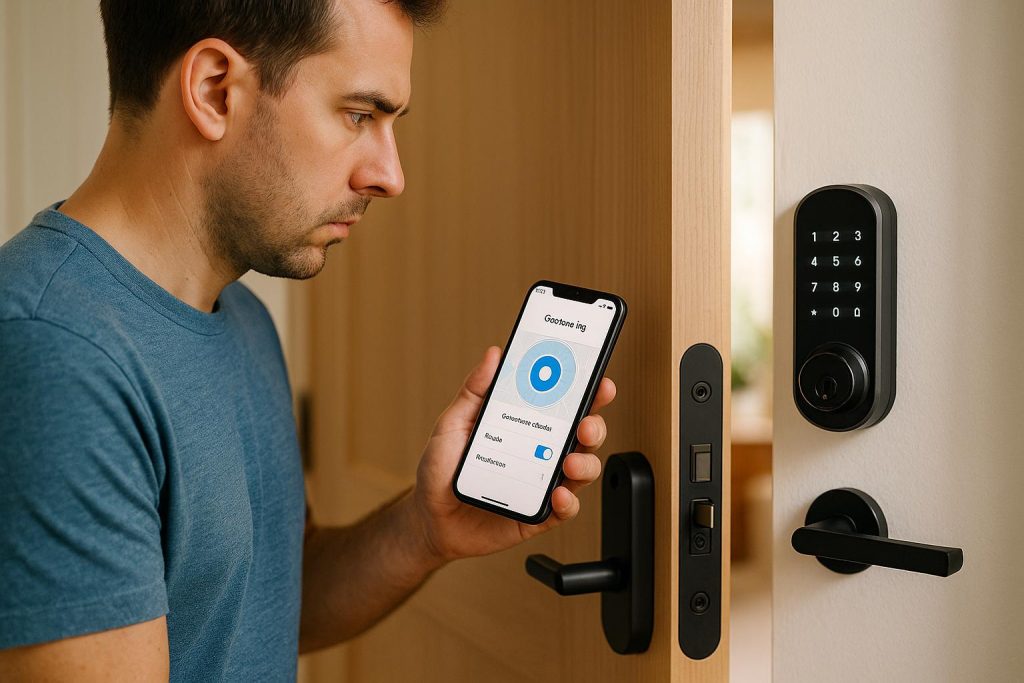
Geofencing relies heavily on your phone’s location settings. Start by opening your device’s settings and navigating to location services. Make sure the smart lock app’s location permission is set to “Always” rather than options like “While Using the App” or “Only This Time.” This allows your phone to track your movements in the background, ensuring it can trigger the lock at the right time.
If your device offers a precise location option, enable it for better GPS accuracy. Also, turn on Bluetooth and Wi-Fi, as they can enhance location precision. Keep in mind that battery optimization settings can interfere with geofencing functionality. Locate the smart lock app in your battery settings and disable any power-saving features applied to it.
A Wyze Lock user shared that their geofencing issues were resolved after setting location services to “Always,” enabling Wi-Fi and Bluetooth, and updating to firmware version 2.1.16.0. After these changes, the auto-unlock feature worked consistently after prior failures.
Once your phone settings are adjusted, move on to reviewing the app itself.
Review App and Geofence Settings
Open your smart lock app and confirm that the auto-unlock feature is turned on for each lock. If you’re managing multiple locks, you’ll likely need to enable this feature individually for each one.
Check the geofence boundary or home location on the app’s map. To ensure accuracy, verify this setting while standing near your lock. If the GPS pin is misplaced – perhaps marking the wrong entrance or appearing off by a noticeable margin – delete the geofence and set it up again. Some manufacturers recommend standing close to the lock during this setup to capture its precise location. Additionally, make sure auto-unlock is enabled for each specific lock.
Another tip: avoid keeping the lock app open on your phone screen as you approach your home. Doing so can sometimes interrupt the auto-unlock process.
If everything checks out with your phone and app settings, it’s time to inspect the lock itself.
Test Lock Hardware and Update Firmware
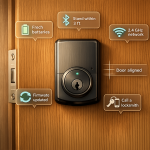
Low batteries are a common culprit behind geofencing failures. Check the lock’s battery level in the app, and if there’s a low-battery warning, replace the batteries immediately. Weak power can disrupt the Bluetooth connection required for auto-unlock.
Next, look for firmware updates in the app. Install any available updates and restart both your phone and the lock. To test the system, try leaving your home and returning within 650 feet. The lock should respond and trigger the auto-unlock within about two minutes.
sbb-itb-643e28e
Environmental Factors and User Habits
Even with perfectly configured phone and app settings, physical factors like tall buildings or dense urban areas can still cause problems with auto-unlock features. GPS is great for pinpointing horizontal positions but struggles with vertical accuracy. For example, if you’re in a high-rise, your phone might mistakenly think you’re "home" when you’re actually on a completely different floor. This can lead to the lock triggering at the wrong time – or not at all.
Urban environments complicate things further. In areas surrounded by tall buildings, GPS signals can bounce off walls and windows, creating what’s called an "urban canyon" effect. This can make your phone’s location jump between nearby streets or even place you at the wrong building. In multi-tower complexes or downtown neighborhoods, this can render auto-unlock unreliable.
Fixing Problems in Multi-Story Buildings and Urban Areas
To address these challenges, start by verifying your home address and door location in the app. Adjust the geofence boundary while standing near the lock to ensure accuracy. In high-rises or multi-unit complexes, double-check that the map pin aligns with your actual entrance, as apps sometimes default to the wrong tower or unit.
If vertical accuracy remains an issue, consider widening your geofence radius slightly – about 200 meters or a few hundred feet. This helps compensate for GPS drift in dense areas while still keeping the radius focused on your property.
Pairing geofencing with Bluetooth proximity can also improve reliability. This ensures the door unlocks only when your phone is physically near the lock, rather than somewhere else in the building. If vertical errors persist, relying more on Bluetooth-triggered unlock or manual entry may be a better option, especially if you’re on an upper floor.
Reducing Signal Interference
Physical barriers can weaken signals, creating additional challenges. For instance, underground parking garages or partially enclosed lots often lack GPS or cellular reception. Your phone may only update its location once it regains an open-air signal. Similarly, thick concrete walls, metal doors, and elevator shafts can interfere with Bluetooth and Wi-Fi connectivity between your phone and the lock.
If your driveway passes through a parking structure, set the geofence boundary slightly beyond the garage exit. This ensures the "arrival" event registers only after your phone has a clear view of the sky. Also, keep your phone out of bags or pockets near your entryway, as these can block signals. Walk at a normal pace toward the door to give the lock a few seconds to detect your phone.
According to Weiser and Kwikset support articles, Wi-Fi network restrictions on shared or public networks (like offices or hotels) can impact geofence accuracy. In such cases, mobile data may provide more reliable location updates. If you travel through areas with weak cellular coverage on your way home, allow your phone to switch automatically between Wi-Fi and mobile data instead of disabling one entirely.
Improving User Movement Patterns
Your movement habits also play a role in geofencing performance. For the system to work correctly, it needs to detect a clear "exit" and "entry." Wyze lock users report that moving about one to two city blocks away is often necessary for the system to reliably register that they’ve exited the home geofence.
Adopt consistent routes that fully cross the geofence boundary, and avoid lingering near its edge. Make sure your departures take you well beyond the radius before turning back or stopping, so the system can register a distinct "exit" and pair it with your eventual "entry."
Keep Bluetooth and Wi-Fi enabled as you approach home, as many systems require both geofence events and Bluetooth proximity to unlock the door.
One last tip: avoid opening the lock app and staring at its live screen as you arrive. Some systems report that having the app actively open can interrupt or cancel the auto-unlock process. Let the background process handle it instead. If auto-unlock stops working, restart the app and your phone, then check for any system updates that might have changed permissions or battery optimization settings.
When to Contact a Professional Locksmith
Signs You Need Professional Help
If your usual troubleshooting steps aren’t solving the problem, you might be dealing with deeper hardware or signal issues. For instance, if you’ve already checked your app and GPS settings but still face problems like an unresponsive auto-unlock, inconsistent triggering, or odd notifications, it could point to physical misalignment, hardware wear, or communication disruptions (like weak Wi-Fi, faulty Bluetooth, or damaged electronics).
Other red flags include weak Wi-Fi signals, frequent network disconnections, repeated connection errors, failed firmware updates, or batteries that drain unusually fast. These symptoms often signal hardware or network issues that go beyond simple fixes. If firmware updates consistently fail or your lock becomes unresponsive afterward, it’s time to call in a professional.
Perhaps the most concerning issue is when your door unlocks unexpectedly – like when you’re several blocks away or in a completely different location according to your app. This could leave your home vulnerable while you’re not around. A professional can step in to review both your digital setup and physical security, suggest disabling risky automations, and ensure you have a backup key for emergencies.
What Sherlock’s Locksmith Offers
When problems persist, professional help becomes a must. Sherlock’s Locksmith in Pittsburgh, PA, specializes in both traditional locksmith services and smart lock technology. They can handle installation, repair, and configuration for all major smart lock brands. Their certified technicians ensure your lock is properly mounted, aligned, and connected to your Wi-Fi network. They can also assist with setting up or relocating Wi-Fi bridges and hubs, fine-tuning geofence boundaries in your app, verifying permissions on all household devices, and ensuring firmware and app updates are current.
Sherlock’s Locksmith offers 24/7 mobile services, providing on-site diagnostics, emergency lockout solutions, and adjustments to your Wi-Fi and hardware setup. With mobile units stationed across Pittsburgh, they can quickly respond if a smart lock or geofencing issue leaves you locked out late at night or unable to secure your home before leaving for a trip. Their technicians can temporarily disable unreliable automations, perform diagnostics on both electronic and mechanical components, and schedule follow-ups to optimize Wi-Fi placement, update firmware, or replace defective hardware.
To speed up the process, it’s helpful to document your smart lock model, any recent changes to your devices or network, and details of the issues you’re experiencing. Noting whether the app logs geofence events or error messages can also be invaluable. Providing photos of your door, frame, and lock setup allows Sherlock’s Locksmith to arrive fully prepared with the right tools and a clear plan to resolve the issue efficiently.
Conclusion
Geofencing brings a level of hands-free convenience when everything – GPS, Bluetooth, Wi-Fi, your phone’s operating system, and the lock’s firmware – works together seamlessly. However, if any of these components are out of sync, outdated, or misconfigured, auto-unlock might fail or activate at the wrong time. Thankfully, most issues can be resolved with a simple checklist: double-check location settings, enable auto-unlock for the correct lock, ensure stable connectivity and charged batteries, and test the system by fully leaving and reentering the geofence.
Once your system is set up, regular maintenance is essential to keep it running smoothly. After software updates or switching devices, you may need to re-enable permissions or tweak your home boundary. Updating the lock’s firmware and mobile app often resolves bugs and improves reliability, so staying on top of these updates is a good habit.
Environmental factors and user habits can also play a role in performance. In urban areas with tall buildings or dense surroundings, GPS accuracy might suffer, leading to delayed or premature triggers. Expanding your geofence radius or relying more on Bluetooth proximity can mitigate these issues. Make sure you fully exit the geofence and keep Bluetooth and location services enabled when returning. For added security, pairing auto-unlock with an auto-lock feature – which locks the door after a set time – can help safeguard against potential misfires.
If you’ve optimized settings and performed updates but still face persistent issues – like a sticking deadbolt or repeated firmware failures – it might be time to consult a professional. In Pittsburgh, PA, Sherlock’s Locksmith offers expert services to inspect door alignment, troubleshoot signal and power issues, and professionally install or reconfigure smart locks. Their 24/7 mobile service ensures you’ll get prompt, on-site assistance, whether you’re locked out or need help fine-tuning your system. Combining geofencing with sound security practices ensures both convenience and peace of mind.
While geofencing adds a layer of ease to your daily routine, it works best when paired with strong security measures. Using durable door hardware, maintaining backup access options like a physical key or keypad code, and routinely testing your system can provide comprehensive protection. And when DIY fixes fall short, turning to a trusted locksmith like Sherlock’s Locksmith can help restore confidence in your home’s security setup.
FAQs
Why isn’t my smart lock’s geofencing feature working properly?
If your smart lock’s geofencing isn’t working as expected, there are a few things you can check to troubleshoot the issue. First, make sure location services are turned on for your smartphone and set to high accuracy mode. Geofencing relies on precise location data, so without it, the feature may not work properly.
Next, confirm that the smart lock app has the required permissions to run in the background. Some phones limit background activity to conserve battery life, which can interfere with geofencing functionality. If you’re still having trouble, try recalibrating your phone’s GPS or tweaking the geofence radius in the app to better match your location.
Need expert help with your smart lock? Sherlock’s Locksmith, based in Pittsburgh, PA, offers 24/7 support for troubleshooting and installation. Their certified technicians can help get your smart lock running smoothly.
How can I fix geofencing issues with my smart lock in busy urban areas?
Geofencing can sometimes struggle in urban areas due to dense buildings and interference from wireless signals. To get the best performance, make sure your smartphone’s location services are turned on and set to high accuracy mode. Also, keep your smart lock app updated – new versions often address geofencing-related issues.
To further enhance accuracy, ensure your phone’s battery-saving mode isn’t limiting location services. Turning on both Wi-Fi and Bluetooth can also help fine-tune your location. If you’re still experiencing issues, consider increasing the geofence radius in your app. A slightly larger area can help mitigate disruptions caused by crowded or signal-heavy environments.
When should I reach out to a locksmith for help with geofencing issues in my smart lock?
If your smart lock’s geofencing features – like auto-unlock or location detection – aren’t working despite your best troubleshooting efforts, it might be time to bring in an expert. Sherlock’s Locksmith has skilled technicians ready to pinpoint and fix the problem quickly.
Whether the issue stems from a configuration glitch, a hardware failure, or the need for a software update, their 24/7 mobile locksmith services ensure you’re never left dealing with a malfunctioning smart lock alone.