





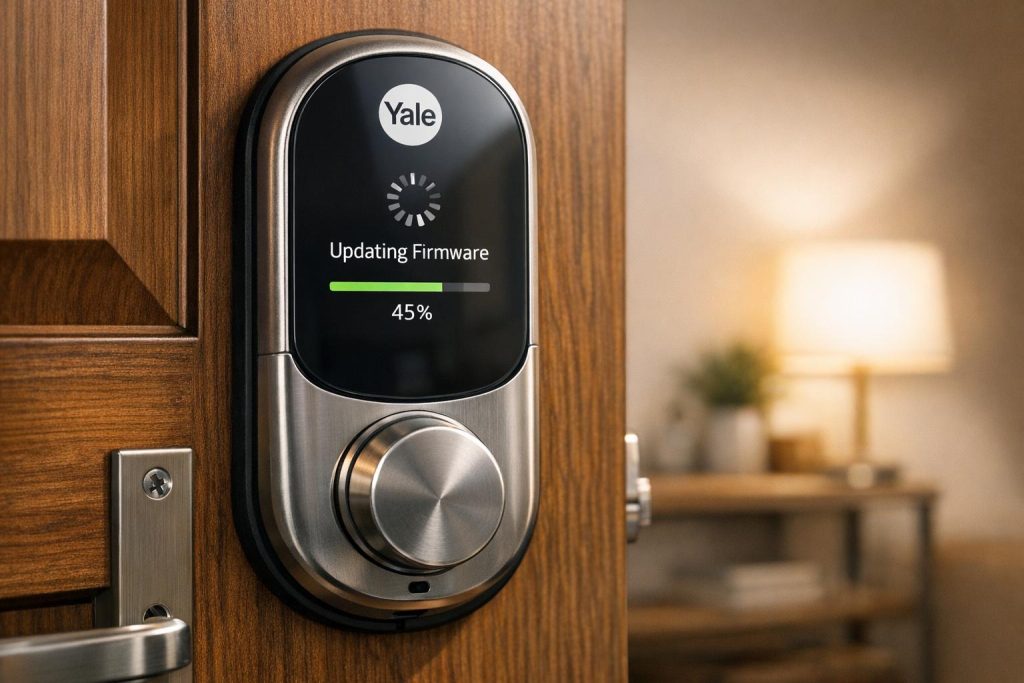
Updating the firmware on your Yale smart lock ensures it stays secure, functional, and compatible with the latest app features. The process is straightforward and takes about 5–15 minutes. Here’s how to do it:
- Check for Updates: Open the Yale Home or Yale Access app. If an update is available, you’ll see a notification.
- Prepare Your Lock:
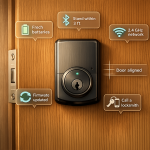
- Use standard AA alkaline batteries (avoid lithium or extended-life types).
- Ensure your phone’s Bluetooth is on and connected to a 2.4 GHz Wi-Fi network.
- Stay within 15 feet of the lock during the update.
- Start the Update: Tap "Update" in the app and keep it open until the process completes.
- Troubleshooting: If issues arise, restart your phone, power cycle the lock, or check battery levels.
After updating, test the lock to ensure it’s working correctly. If problems persist, consider professional help for hardware issues.
Key Tip: Always keep your lock’s firmware up to date for optimal performance and security.
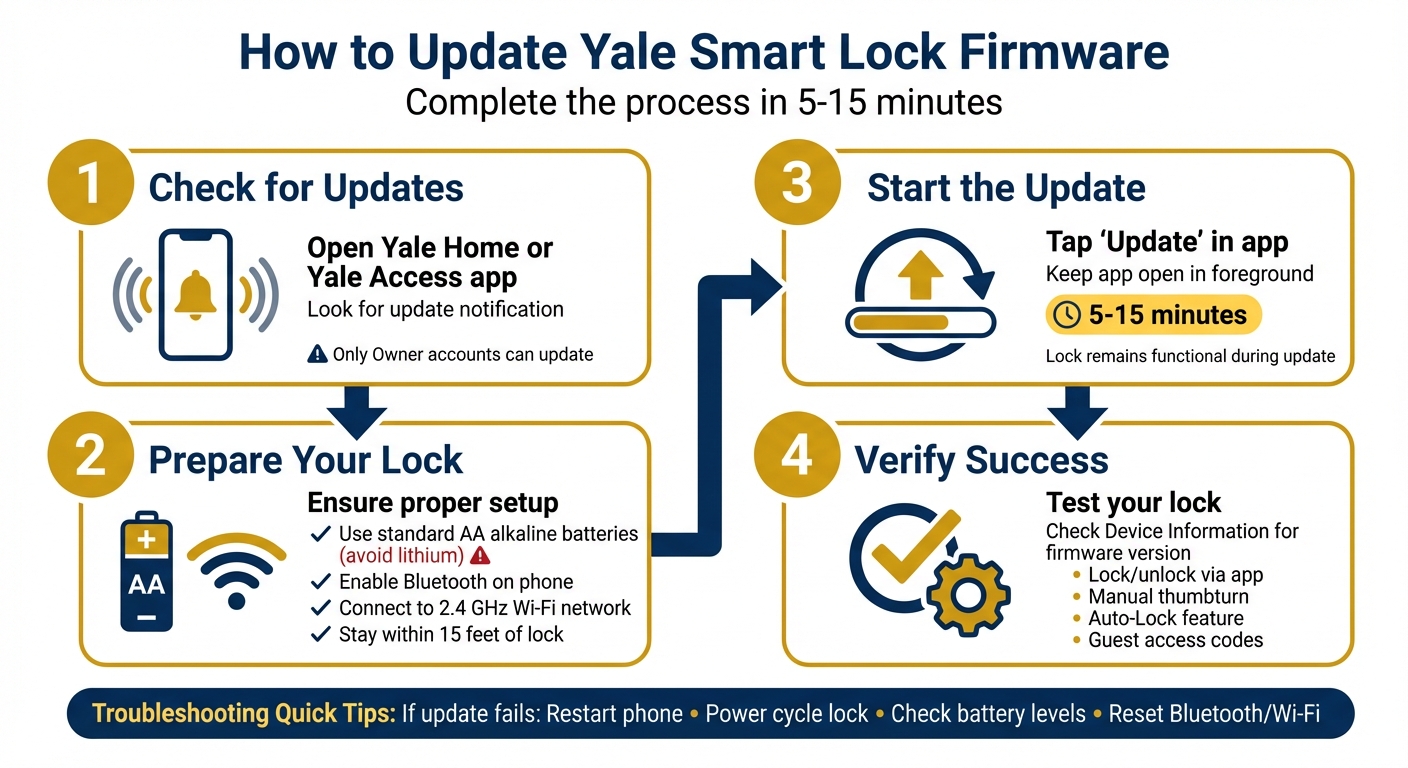
Yale Smart Lock Firmware Update Process: 4-Step Guide
Getting Ready for the Firmware Update
Before hitting "update" in your Yale app, take a few steps to ensure everything goes smoothly and avoid potential hiccups.
Confirm Your Lock Model and App Version
Start by opening the Yale Home app and tapping the gear icon (⚙) in the top corner. Select your lock, then choose Device Information to view details like your model name and serial number. Make sure you’re using the Yale Home app, as it’s designed to support the latest firmware updates.
The most recent app version, 24.15.0, was released on August 19, 2024, and works with all current firmware updates. To confirm your app version, tap the menu in the top left corner of the app.
Check Battery Power and Connection Settings
For the update, use fresh AA alkaline batteries. Avoid lithium or extended-life alkaline batteries since they can misreport battery levels. As Yale Support advises:
Please use only standard alkaline batteries. Lithium and extended life alkaline batteries will not provide you with the optimal experience and could result in not being alerted that your batteries are dying.
Make sure Bluetooth is enabled on your phone and connect to your home’s 2.4 GHz Wi‑Fi network, as the Yale Connect Bridge doesn’t support 5 GHz networks. Keep the app open and your phone awake during the update process.
Stay within 15 feet of your lock while updating. The process typically takes 5 to 15 minutes. If you’re using a Yale Connect Bridge, ensure it’s within the same range and positioned at a perpendicular angle to the lock if you experience Bluetooth signal issues.
If problems persist despite these steps, it might be time to explore professional assistance.
When to Get Professional Help
If the firmware update keeps failing, hardware issues could be the culprit. For instance, if the lock remains unresponsive even after reinserting the battery or retrying the update, there may be a deeper problem.
Issues like lock misalignment, motor malfunctions, or calibration errors can interfere with updates. If you’re in the Pittsburgh, PA area, Sherlock’s Locksmith provides lock inspection and alignment services. Their certified technicians can identify and resolve hardware problems that might be blocking the update process.
How to Update Your Yale Smart Lock Firmware

Updating your Yale Smart Lock firmware is a simple process that usually takes between 1 and 15 minutes. Make sure to keep the Yale app open and stay close to your lock throughout the update process.
Starting the Update in Your Yale App
Begin by opening the Yale Home or Yale Access app while within Bluetooth range of your lock. If a firmware update is available, the app will notify you. Tap Update on the notification to start the process.
Keep in mind that only Owner accounts have the ability to initiate firmware updates. Before starting, ensure your phone is connected to your home’s Wi-Fi network. The update will automatically begin when the lock owner connects to the lock via Bluetooth. If you have multiple locks, you’ll need to update each one individually.
Finishing the Update
Once the update starts, keep the Yale app open and running in the foreground. Switching to another app will pause the update. The app is designed to prevent your phone from going to sleep, so you don’t need to worry about the screen timing out.
You’ll see a progress bar at the bottom of the app screen to track the update’s status. During the update, you can still use your lock manually or through the app without any issues. Once the update is complete, you’ll receive a success notification.
If you accidentally close the app before the update finishes, don’t worry – the progress is saved. The update will resume the next time you open the app and reconnect to your lock.
Yale Home provides this helpful note:
There is no option to postpone the update, but if you don’t stay near your door, the update won’t complete at that time. Each time you connect to your lock, it will prompt you to finish the update.
To confirm the update was successful, tap the gear icon (⚙) in the app, go to Lock Settings, and select Device Information to check the current firmware version.
Updates with the Yale Connect Wi‑Fi Bridge
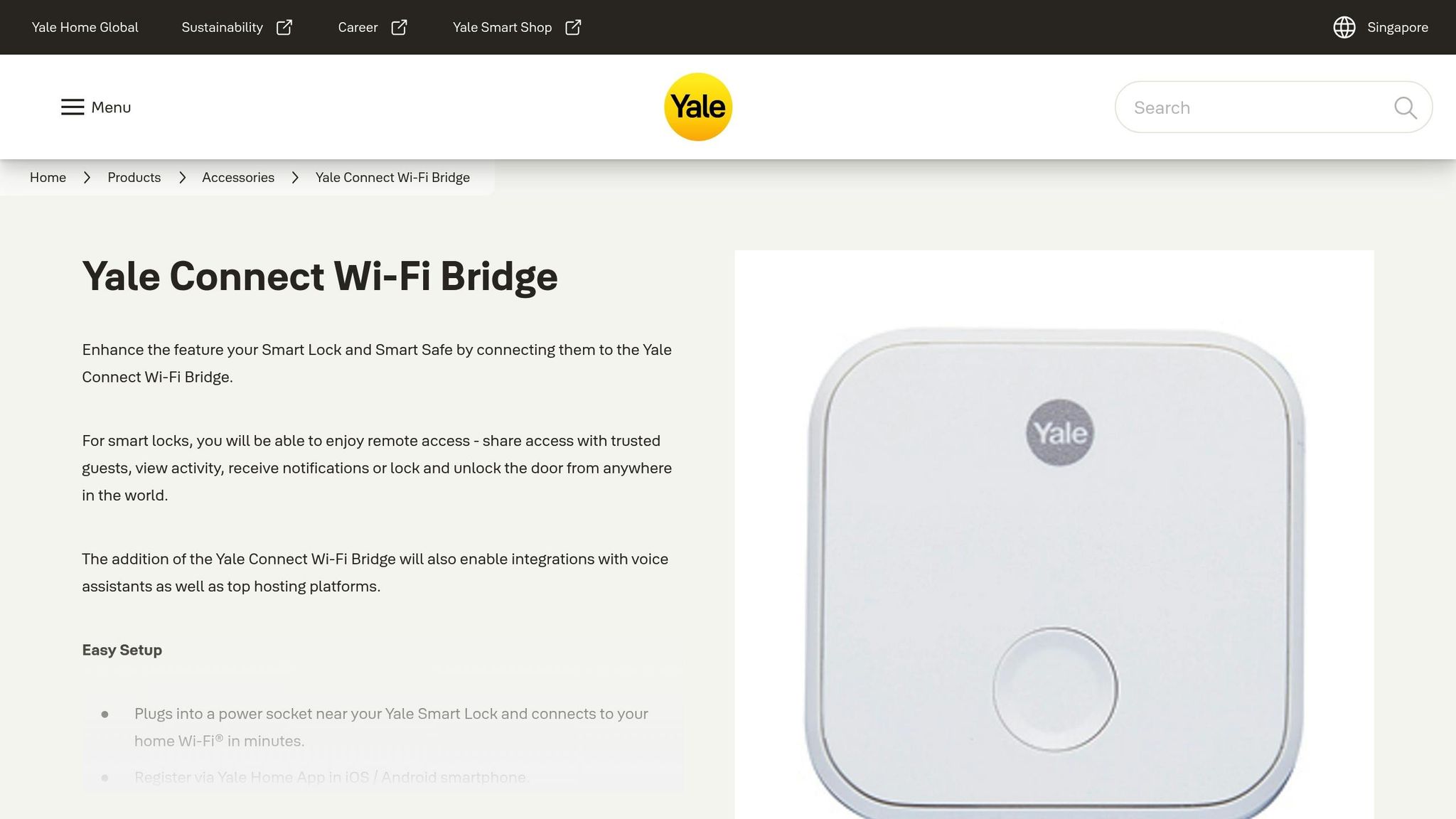
If you’re using a Yale Connect Wi‑Fi Bridge, there are a few additional considerations. The firmware update still happens over Bluetooth between your phone and the lock, but the bridge ensures a more stable connection and helps the app download the update more efficiently by keeping your phone on the local network.
The bridge itself isn’t impacted by the lock’s firmware update and will continue providing remote access once the update is complete. For the best results, place your Wi-Fi Bridge within 15 feet of the lock to maintain a strong signal.
Fixing Common Firmware Update Problems
Common Update Problems
Firmware updates can sometimes hit snags, like stopping midway, showing vague error messages, or misrepresenting the lock’s status. For instance, your lock might stop responding to the app but still work with a physical key. If the app displays an incorrect lock state – such as "open" when the door is closed – this could mean the DoorSense calibration is off. To fix this, go to your lock’s settings in the Yale app and recalibrate DoorSense.
Firmware updates typically take 5 to 15 minutes. If it’s dragging on longer, there might be a Bluetooth connectivity issue.
Basic Fixes for Failed Updates
If you’re facing update issues, try these simple steps first:
- Restart your phone to clear any glitches with Bluetooth or the app.
- Power cycle the lock by removing one battery, waiting 30 seconds, and reinserting it.
- Check battery levels: Replace all four batteries if they’re below 25%. Stick to standard alkaline batteries, as lithium or extended-life batteries can trigger false low-battery warnings.
- Reset Bluetooth and Wi-Fi: Turn both off for at least 30 seconds, then back on. Be sure to use the main Settings menu, not shortcuts like the Control Center on iOS.
- Check the Yale Connect Wi-Fi Bridge: Ensure it’s within 15 feet of your lock and connected to a 2.4 GHz network.
- For Yale Smart Keypad users: Hold the red Yale button for 5–10 seconds to start the update.
Once you’ve tried these steps, move closer to the lock and reopen the Yale app. This should prompt the update to resume.
When to Contact a Locksmith
If these fixes don’t work, you might need to take more advanced steps. A factory reset through the Yale app could solve the problem, but keep in mind this will erase all guest and owner data. If you bought a pre-owned lock and it wasn’t reset by the previous owner, you might have to wait up to 30 days for Yale to authorize a factory reset.
Sometimes, physical alignment issues or interference with the lock mechanism can cause problems after a firmware update. In such cases, it’s best to reach out to Yale support or a professional locksmith.
For example, Sherlock’s Locksmith in Pittsburgh, PA, offers 24/7 mobile services. Their certified technicians can handle complex smart lock issues, repair hardware, or replace the lock entirely if there’s a deeper mechanical or electronic fault.
sbb-itb-643e28e
Keeping Your Yale Smart Lock Working After Updates
Testing Your Lock After the Update
After the update is complete, the Yale Access app will notify you. Take a moment to confirm that your lock is functioning as intended.
To verify the firmware update, navigate to the Gear icon (⚙) > Device Information in the app. Test the basics: lock and unlock the door using the app, turn the thumbturn manually, and make sure Auto-Lock activates as it should. Look at the connection icon in the top-right corner of the lock screen to check whether your lock is using Bluetooth or Wi-Fi. These updates are designed to enhance connection speed and reliability.
If you have a Yale Smart Keypad, enter one of your personal entry codes to confirm it’s still working properly with the lock. Also, test any guest access codes and schedules to ensure they remain functional.
Once you’ve verified your lock’s performance, you’ll be ready to keep things running smoothly for future updates.
Tips for Future Firmware Updates
Yale rolls out firmware updates in phases, so your lock might not get the latest version right away. Check the app regularly for updates, especially if you notice a new version of the Yale Access app.
To ensure a successful update, keep your phone within Bluetooth range and leave the app open during the process. Make sure your lock’s batteries are fully charged – losing power in the middle of an update could mean starting over.
For those using a Yale Smart Keypad, enabling Power Saving Mode in the settings can help extend battery life. This mode disables the IR sensor, so the keypad only lights up when a button is pressed. If a keypad firmware update is needed, stand next to the device and press the red Yale button for 5 seconds. If nothing happens, try holding it for 10 seconds instead.
Most firmware updates take about 5–15 minutes to complete, with faster results on a strong Wi-Fi connection.
Conclusion
Updating the firmware on your Yale smart lock is a key step in maintaining its security, performance, and functionality. As Yale puts it, "Firmware updates are very important. We recommend completing them at your soonest convenience". These updates often improve connection speed, motor performance, and the reliability of features like Auto-Lock.
To ensure a smooth update process, keep these essentials in mind: stay within Bluetooth range, have the Yale Access app open, and make sure your lock’s batteries are fresh. Following these steps can help you avoid interruptions or failed updates.
While most updates can be done easily through the Yale Access app, some situations – like repeated update errors, hardware issues, or connectivity troubles – might require professional help. If you’re in Pittsburgh, Sherlock’s Locksmith offers 24/7 mobile locksmith services. Their certified technicians can handle everything from smart lock troubleshooting to integrating your lock with other security systems.
FAQs
Why is it important to update the firmware on my Yale smart lock?
Keeping your Yale smart lock firmware updated is key to ensuring it works efficiently. Updates often bring improvements to connection speed, reliability, and motor performance. They also fine-tune features like Auto-Lock and bolster security. By staying current with updates, you can avoid potential problems and keep your lock functioning seamlessly.
What can I do if my Yale smart lock firmware update keeps failing?
If you’re having trouble with your Yale smart lock firmware update, here are some steps you can take to resolve the issue:
- Restart your phone: Close the Yale app, turn off your phone, and then power it back on. This simple step often resolves temporary glitches with the app or Bluetooth.
- Power-cycle the lock: Remove one of the lock’s batteries, wait a few seconds, and then put it back in. This helps reset the lock’s internal system.
- Try the update again: Make sure your phone is close to the lock (within Bluetooth range) with Bluetooth turned on. Keep the Yale app open during the entire update process, which can take anywhere from 5 to 15 minutes.
If none of these steps work, it’s a good idea to contact Yale’s customer support. They can offer more specific troubleshooting tips to get your lock back on track.
How do I update the firmware on my Yale smart lock?
To update your Yale smart lock firmware, make sure the lock’s battery is fully charged and your phone’s Bluetooth is turned on. Open the Yale Access app, choose your lock, and follow the instructions displayed on the screen to start the update. Keep your phone close to the lock throughout the process, which usually takes about 5 to 15 minutes.
It’s important to stay within Bluetooth range and keep the app open to avoid interruptions. After the update is finished, check the firmware version in the app to confirm everything went smoothly. If the update doesn’t work, try restarting the app or your phone, and double-check that the lock’s battery is charged. If problems persist, reach out to Sherlock’s Locksmith for expert help.