


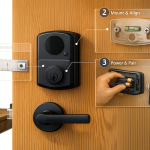


When your smart lock won’t pair, it’s usually due to low batteries, being too far from the lock, or network issues. Start by replacing all batteries with high-quality alkaline ones and ensure they’re installed correctly. Keep your phone within 3 feet of the lock during Bluetooth pairing or position a Wi-Fi bridge within 15 feet. Clear old connections from your app, ensure your phone is on a 2.4GHz Wi-Fi network, and restart devices if needed. If problems persist, update the lock’s firmware or perform a factory reset. Hardware issues like misaligned doors or loose components can also interfere, so check the lock’s installation. For persistent issues, contact a professional locksmith.
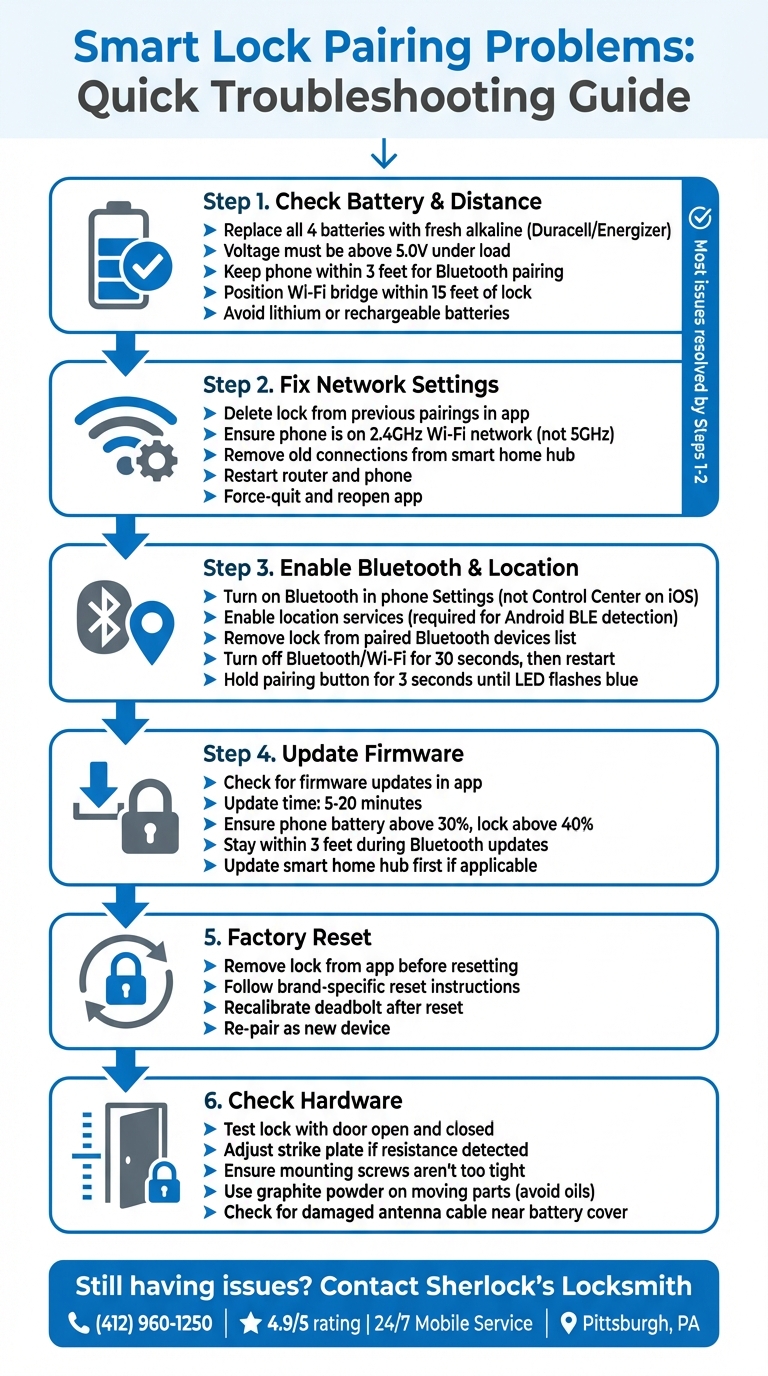
Smart Lock Pairing Troubleshooting Flowchart: Step-by-Step Solutions
How To Fix Schlage Door Lock Not Connecting To App – App Pairing Mode + Bluetooth Fix
sbb-itb-643e28e
Check Battery Power and Device Distance
Before diving into network settings, start with the basics: battery power and device proximity. These two factors are often the root of pairing issues. A low battery can weaken your smart lock’s ability to connect, leading to errors like "Unable to Connect" or making the device undetectable during setup. Common signs of low battery include an unresponsive keypad, rapid blue LED blinking, or unstable signal strength (common issues seen during digital lock installation).
"Low or depleted batteries are a primary cause of pairing failure." – scOS
Distance is just as critical. For Bluetooth pairing, keep your smartphone within 3 feet of the lock. If you’re using a Wi-Fi bridge, position it 13–15 feet away, avoiding obstacles like walls or doors. Signals can weaken over greater distances, especially the 2.4GHz frequency, which is more prone to interference from household devices. In some cases, failed attempts show erratic signal strength (RSSI) readings between –80 dBm and –95 dBm.
The sections below outline key strategies for managing battery power and ensuring proper device placement.
Use Fresh Batteries and Install Them Correctly
Start with fresh, high-quality alkaline batteries (like Duracell or Energizer) before pairing. Batteries should maintain a voltage above 5.0V under load. Always replace all four batteries at the same time – mixing old and new ones can disrupt power delivery.
Avoid using rechargeable or lithium batteries, as their inconsistent voltage can cause problems.
"Lithium and extended life alkaline batteries will not provide you with the optimal experience and could result in not being alerted that your batteries are dying"
Check that the batteries are inserted correctly according to the compartment diagram. Reversed polarity can lead to errors. If you notice corrosion on the battery contacts, clean them with a cotton swab dipped in white vinegar, then dry with a microfiber cloth. If pairing doesn’t work, try removing the battery pack for 60 seconds to reset the hardware.
Keep Devices Close During Pairing
Proximity is essential for a smooth pairing process. Place your smartphone within 3 feet of the smart lock during setup. This reduces the risk of signal loss or interference.
For those using a Wi-Fi bridge, plug it into an outlet no more than 15 feet from the lock. Ensure there are no heavy obstructions, such as metal doors or thick walls, between the devices. If pairing still fails, consider temporarily disabling nearby 2.4GHz Wi-Fi networks to minimize signal interference during the process.
Fix Network Settings and Remove Old Connections
Sometimes, lingering connections from previous device registrations can prevent new pairings. If your lock is still tied to an old account or device, you’ll need to remove that connection first. Without doing so, the lock won’t pair successfully. Another common issue stems from network frequency mismatches. Many smart locks operate on a 2.4GHz Wi‑Fi network, but smartphones often default to the faster 5GHz band, which can disrupt the setup process.
"The frequency of your network may have changed from 2.4GHz to 5GHz without realizing." – Yale Home Support
Clearing outdated connections and ensuring your network settings are correct can help resolve these problems. Follow these steps to address the issue.
Delete the Lock from Previous Pairings
Start by opening your smart lock’s app (like the Yale Home App). Go to the device settings, locate the specific lock or bridge, and select the option to "Disconnect Device" or "Unpair" to remove the old connection. If you’re using Z-Wave or Zigbee systems, make sure to exclude the lock from your smart home hub before attempting to pair it again.
If the app isn’t responding, try a manual reset. For instance, with the Yale Wi‑Fi bridge, press and hold its button for 5 seconds while it’s plugged in. Then unplug it, wait a few seconds, and plug it back in. Be sure to force-quit the app afterward to clear any cached errors that might interfere with pairing.
Once the lock has been unpaired, it’s time to check your network settings.
Test Wi‑Fi or Bluetooth Connectivity
Ensure your smartphone is connected to a 2.4GHz Wi‑Fi network and stay close to the lock during setup. If pairing still doesn’t work, turn off both Bluetooth and Wi‑Fi from your phone’s main Settings menu and wait about 30 seconds before turning them back on.
"Note that toggling the Bluetooth from the control centre on iOS devices vs with the Bluetooth settings will not successfully perform the proper procedures that need to be completed." – Yale Home Support
If you’re still having trouble, restart your router and your phone. For locks using a Wi‑Fi bridge, make sure the bridge is placed within 15 feet of the lock to maintain a strong connection.
These steps should help you overcome most pairing challenges and get your smart lock up and running.
Fix Bluetooth and Location Settings
Once you’ve ruled out battery and network issues, it’s time to check your phone’s Bluetooth and location settings. These are essential for a smooth pairing process. Bluetooth establishes the direct link between your phone and the lock, while location services – especially on Android – help detect nearby Bluetooth Low Energy (BLE) devices. If either is turned off, your smart lock app won’t detect the hardware.
For Bluetooth pairing, keep your phone within 3 feet of the lock. For setups involving a Wi‑Fi bridge, stay within 15 feet. If you’ve already enabled these settings but pairing still doesn’t work, brief connectivity hiccups might be the culprit. Refreshing settings and restarting devices can often resolve these glitches.
Turn On Bluetooth and Location Services
First, head to your phone’s Settings and ensure Bluetooth and location services are enabled. On iOS devices, avoid toggling Bluetooth through the Control Center.
"Toggling the Bluetooth from the control centre on iOS devices vs with the Bluetooth settings will not successfully perform the proper procedures that need to be completed." – Yale Home
If your lock was previously paired, remove it from your phone’s list of paired Bluetooth devices before trying to reconnect through the app. If enabling these settings doesn’t fix the issue, restarting your devices is the next step.
Restart Devices and Reset Connections
Start by force closing the smart lock app from your recent apps list. Then, turn off both Bluetooth and Wi‑Fi for about 30 seconds, and restart your phone. If pairing still fails, try resetting the electronic lock installation itself. To do this, hold the pairing button for 3 seconds until the LED flashes blue.
Update Firmware and Reset the Smart Lock
When troubleshooting a smart lock, updating the firmware can often address persistent issues, including pairing problems. Outdated firmware can disrupt the connection between your lock and phone, but updates can fix bugs, improve connection reliability, and refine features like Auto-Lock. Depending on whether your lock uses Wi-Fi or Bluetooth, the update process typically takes 5–20 minutes.
Before starting, make sure your phone’s battery is above 30%, and your lock has at least 40% power. This prevents interruptions caused by power-saving modes. If your lock connects to a smart home hub or base station, update that device first – outdated hub firmware can block lock updates.
Install Firmware Updates
Each brand has its own process for firmware updates. Here’s how to get started:
- Schlage locks: Open the app, tap the three dots, go to "Lock Settings", choose "Firmware Settings", and select "Update Now."
- Kwikset locks: Navigate to "Lock Settings", then "Utilities", and tap "Firmware Update."
- SimpliSafe locks: Look for the "Update Available" tile in the Overview tab.
- Yale locks: Updates start automatically when the lock connects via Bluetooth and the app is open.
If you’re updating via Bluetooth, stay within 3 feet of the lock to avoid signal issues, and keep the app open until the update is complete. Wi-Fi updates are quicker and don’t require you to stay nearby. If the update fails, try toggling Bluetooth off and on or disconnecting other Bluetooth devices like headphones that might interfere.
If updating the firmware doesn’t solve the problem, the next step is a factory reset.
Reset to Factory Settings if Needed
A factory reset wipes all user data and restores the lock to its default settings. Before resetting, remove the lock from your app and disconnect any paired keypads.
Here’s how to reset some popular brands:
- August and Yale locks: Open the app, go to the Lock Circle screen, tap Settings, select your device, and choose "Factory Reset."
- Schlage locks: First, delete the device from the app. Then, follow the hardware reset instructions specific to your model.
After resetting, you’ll need physical access to the lock to recalibrate the deadbolt and pair it again as a new device.
If issues persist after these steps, consider looking into installation or hardware-related factors for further troubleshooting.
Fix Installation and Hardware Problems
Sometimes, the issue with pairing isn’t about the software or settings – it could be how the lock is installed. A misaligned door or loose hardware can make your smart lock show up as "offline" or "not responding" in the app, even if the connection is fine. If the deadbolt encounters resistance from a poorly aligned strike plate, the lock’s sensors might fail to confirm the bolt is in the correct position.
Check Door and Lock Alignment
Start by testing the lock with the door both open and closed. If you notice resistance only when the door is shut, the strike plate alignment is likely the culprit. You can fix this by adjusting the strike plate with a screwdriver or enlarging the slot to let the bolt move freely.
Make sure the mounting screws aren’t too tight, as this can cause binding. Also, check that weatherstripping isn’t forcing the door to move excessively. To minimize friction, use graphite powder on moving parts, but avoid thick oils – they can attract dust and clog the lock’s sensors.
Once you’ve ensured proper installation, revisit your pairing method to improve connectivity.
Wi-Fi vs. Bluetooth Pairing Methods
Good physical installation goes hand-in-hand with choosing the right pairing method, whether Wi-Fi or Bluetooth. Each has its own strengths and potential issues, so understanding their differences can help you troubleshoot effectively.
| Feature | Wi-Fi Pairing | Bluetooth Pairing |
|---|---|---|
| Protocol | 802.11 b/g/n (typically 2.4 GHz) | Bluetooth Low Energy (BLE) |
| Range | Depends on router distance and obstacles | Close range (usually within 2–3 meters) |
| Common Issues | Band steering (5 GHz vs. 2.4 GHz), incorrect password, signal interference | Device out of range, Bluetooth turned off, or paired to another phone |
| Quick Fixes | Use a dedicated 2.4 GHz band; reboot the router | Toggle Bluetooth or reset network settings |
| Primary Use | Remote access and notifications | Local setup and manual control |
If your lock uses a separate Wi-Fi bridge, position it midway between the router and the lock to maintain stable signals for both Wi-Fi and Bluetooth. For locks with built-in Wi-Fi, inspect the antenna cable near the battery cover – any damage here can cause the lock to lose connectivity completely.
When to Contact Sherlock’s Locksmith

If basic troubleshooting steps like replacing batteries, performing a factory reset, adjusting network settings, or checking for alignment issues don’t solve your lock problem, it’s time to call in the experts. Persistent connectivity issues could point to more serious problems, such as a failing motor, damaged electronics, or a jammed override key.
"If the override key jams, internal rust or damage may be present – call a locksmith rather than forcing it." – Wick, Smart Locks Reviewed
When DIY fixes fall short, Sherlock’s Locksmith is available around the clock with mobile services across Pittsburgh, PA. Their certified technicians use advanced tools to determine whether the issue stems from software glitches or hardware failures. Whether it’s repairing biometric locks or integrating complex access control systems, they ensure your security system functions smoothly. Their track record of customer satisfaction speaks for itself.
With an impressive 4.9/5 rating from 122 Google reviews, customers frequently highlight the team’s punctuality and expertise. One customer shared how a technician quickly diagnosed and resolved a defective key fob issue, finishing the job faster than expected. The company is fully bonded and insured, and all services include a warranty for added peace of mind.
Need help now? Call Sherlock’s Locksmith at (412) 960-1250. Their technicians stay up-to-date on the latest smart lock technologies, ensuring quick diagnostics and dependable solutions.
Conclusion
Smart lock pairing problems are often caused by straightforward issues like low batteries, being out of range, outdated firmware, or hardware misalignment. Start by replacing the batteries, keeping devices close together, and double-checking network settings. These basic steps usually solve most connection problems.
Regular upkeep can help you avoid many of these common headaches. Check your batteries periodically, clean the contacts, and test your backup physical key every month to ensure it’s in working order. Many smart lock issues can be resolved simply by replacing the batteries.
If these steps don’t work, reach out to Sherlock’s Locksmith at (412) 960-1250 for professional help. Their certified technicians in Pittsburgh, PA, can handle both software and hardware problems, ensuring your lock is secure and fully functional.
Smart locks provide both convenience and security when properly maintained. Stick to the troubleshooting tips above, follow your manufacturer’s pairing instructions, and keep firmware updated. Address alignment issues as soon as they arise. With the right setup and regular maintenance, your smart lock system can stay reliable and hassle-free for years to come.
FAQs
Why does my smart lock pair sometimes but fail later?
Smart locks can sometimes pair successfully at first but later lose connection. This can happen for several reasons, such as unstable network conditions, outdated firmware, or signal interference. To fix this, start by checking a few basics:
- Make sure your Wi-Fi password meets the smart lock’s specific requirements.
- Replace the batteries if they’re running low.
- Double-check that your smart lock is fully compatible with your network and devices.
By tackling these common issues, you can often get your smart lock back on track without much hassle.
What should I do if my lock is still linked to another phone or account?
To disconnect your smart lock from another phone or account, you’ll need to perform a factory reset. Check the reset instructions for your specific lock model. This might involve using the manufacturer’s app or physically disconnecting the battery. A factory reset will return the lock to its default settings, making it ready to pair with a new account.
How can I tell if pairing issues are caused by door alignment?
If you’re experiencing resistance or jamming when locking or unlocking your door, the problem could be related to door alignment. This typically happens when the door bolt and the strike plate aren’t properly aligned.