


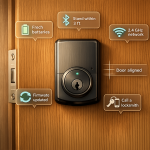

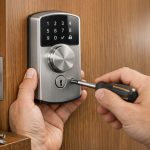
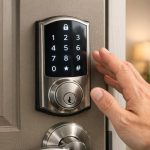

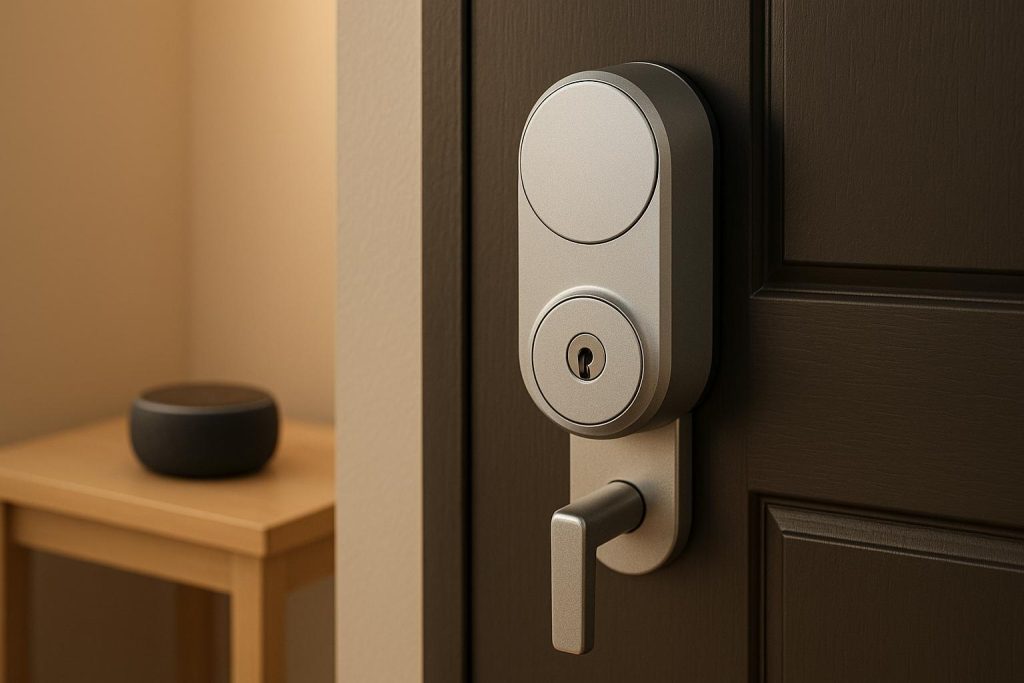
When your smart lock stops responding to Alexa, it’s usually due to communication issues between the lock, Wi-Fi, hub, and Alexa’s cloud. Common causes include low batteries, weak signals, outdated Alexa skills, or configuration problems. Here’s how you can quickly troubleshoot and fix the issue:
- Check Batteries: Replace weak or failing batteries in the lock, as they often cause communication problems.
- Verify Network: Ensure your Alexa device and smart lock are connected to the same stable Wi-Fi network. Restart your router and devices if needed.
- Update Firmware and Skills: Update the lock’s firmware through its app and ensure the Alexa skill is enabled and linked properly.
- Re-link Devices: If Alexa doesn’t recognize the lock, remove and re-add it in the Alexa app. Rediscover devices or re-link the lock account.
- Test Lock Functionality: Operate the lock manually and through its app to rule out mechanical issues or misalignment.
- Reset Devices: As a last resort, perform a factory reset on the lock or Alexa device to clear persistent errors.
If the problem persists, it might be due to hardware or installation issues. In such cases, consulting a locksmith can help resolve alignment problems, motor strain, or other mechanical faults affecting the lock.
For step-by-step solutions and when to seek professional help, read on.
Get Your Smart Home Back on Track – Alexa App Fix Guide

Check Basic Functionality and Connectivity
Before diving into app settings or attempting a factory reset, it’s worth checking the basics: power, proximity, and network connectivity. Many "not responding" issues stem from simple problems like weak batteries, an offline hub, or a Wi-Fi hiccup. Addressing these straightforward causes can often resolve the issue without much hassle.
Check the Smart Lock Battery
Low or failing batteries are one of the most common reasons smart locks stop working with Alexa. Unlike traditional deadbolts, smart locks rely on battery power to operate their motor, maintain wireless connections (like Bluetooth, Z-Wave, Zigbee, or Wi-Fi), and communicate with their hub or cloud service. When batteries weaken, the lock may struggle with communication, leading to delayed app responses, random disconnects, or the lock functioning locally but not through Alexa.
Start by opening the battery compartment, typically located on the interior side of the door. Inspect the batteries visually for signs of corrosion, swelling, or leakage. If you spot any of these issues, replace the batteries immediately and clean the contacts with a dry cloth or a cotton swab dipped in rubbing alcohol.
Next, check the battery level in the lock’s companion app (whether it’s August, Schlage, Wyze, or another brand). Many apps will show a percentage or a "low battery" warning. If the level is below 20–30%, replace all the batteries with fresh, high-quality alkaline ones as specified in the manual. Avoid mixing old and new batteries or using different brands, as inconsistent voltage can lead to unreliable behavior.
Once you’ve installed new batteries, test the lock through its app by locking and unlocking the door a few times while connected to the same Wi-Fi network. Then, try Alexa commands again. Often, fresh batteries resolve sluggish or unresponsive behavior.
If the lock still appears frozen or offline despite having good batteries – common with some models like ULTRALOQ – try removing the batteries for 10–30 seconds before reinserting them. This simple reset can often restore Bluetooth and Wi-Fi connectivity.
Finally, ensure the lock’s mechanical functions are working properly. With the door open, operate the deadbolt using the interior thumb turn or keypad. The motion should be smooth and consistent. If the deadbolt feels stiff or grinds, the door may be misaligned, which could overwork the motor, drain batteries faster, and cause intermittent operation. For such hardware issues, consult the "When to Call a Professional Locksmith" section.
If battery-related problems are ruled out, the next step is to confirm Alexa and your network are functioning as expected.
Verify Alexa and Network Connection
Start by ensuring your Alexa device is powered and connected to Wi-Fi. Check that it’s plugged into a working outlet – test the outlet with another device to rule out any electrical issues. Also, confirm that the microphone isn’t muted. If the Echo’s light ring is solid red, press the microphone button to unmute it.
Test Alexa’s responsiveness by saying, "Alexa, what time is it?" If Alexa doesn’t respond, the issue might be with the device or its internet connection rather than the smart lock. However, if Alexa responds to general questions but fails with lock commands, the problem likely lies with the lock, its hub, or its integration with Alexa.
Open the Alexa app, navigate to Devices, select Echo & Alexa, and tap your device to check its status. Ensure it’s listed as "Online" and connected to the correct Wi-Fi network. If it’s offline or connected to a guest network, use the app’s "Change" option to reconnect it to your primary network and re-enter the password.
Proximity to the Wi-Fi router is also important. Alexa devices should ideally be within 20–30 feet of the router for a stable connection. Avoid placing the device in cabinets, behind TVs, or near appliances like microwaves, as these can interfere with the signal. If other Alexa devices in your home are working fine, compare their locations and settings to identify any range issues.
If your Alexa device seems sluggish or disconnects frequently, restart it by unplugging it for 30 seconds. Once it powers back on and is ready, retest your lock commands. Also, ensure the Alexa app on your phone is updated, as outdated software can sometimes cause compatibility issues.
Test Wi-Fi and Hub Status
A stable network is just as important as fresh batteries for smart lock performance. Use a smartphone or laptop on the same network to stream a video or run a speed test. If you notice buffering, dropped connections, or slow speeds, your network might be unstable, causing timeouts between Alexa and the lock.
Inspect your router for warning lights or error indicators. If needed, restart the network by unplugging both the modem and router for 30 seconds. Plug in the modem first, wait for its lights to stabilize, and then reconnect the router. Once the network is stable, test the lock through its app and Alexa.
Many smart locks rely on a hub or bridge to connect to your home network and the cloud. Examples include SmartThings hubs, August’s Connect bridge, or Bluetooth-to-cloud adapters. If the hub is offline, poorly positioned, or too far from the lock, Alexa may not be able to control the lock even if both devices appear powered.
Locate your lock’s hub or bridge and ensure it’s plugged in with normal status lights as per its manual. Open the hub or lock app to check if the lock is listed as "Online" and responds to commands. If it times out or appears offline, the issue is likely between the lock and the hub, not Alexa.
Placement matters. Position the hub or bridge midway between the router and the lock, away from dense metal objects or large appliances that could block signals. For Z-Wave locks, adding a powered Z-Wave repeater (like a smart plug) can strengthen the mesh network and resolve connectivity issues. For example, in one SmartThings community case, adding a repeater resolved delayed Z-Wave responses with Schlage locks, allowing Alexa to function properly.
If the hub or bridge frequently disconnects, restart it by unplugging for 30 seconds, then plug it back in. Once it’s fully online, retest the lock.
To determine whether the problem lies between the lock and hub or between the hub and Alexa, try controlling the lock directly through its app while connected to your home network. If the app struggles to control the lock, the issue is likely with the lock-to-hub connection, such as weak signals or a frozen lock. A battery reset may help in such cases.
Confirm Alexa Recognizes the Smart Lock
Once you’ve confirmed power and network connectivity, it’s time to ensure Alexa recognizes your smart lock. Even if the lock works flawlessly in its native app, Alexa won’t respond to voice commands unless the lock is properly registered within Alexa’s system. Here’s how to check device visibility, test commands, and re-establish the connection if needed.
Check Device Status in the Alexa App
Start by opening the Alexa app on your smartphone or tablet. Tap Devices at the bottom of the screen, then select All Devices or navigate to the Locks category if available. Look for your smart lock by the name you assigned during setup, such as "Front Door Lock" or "Garage Door."
- If the lock appears, tap it to view its status. A properly connected lock will show as "Online", along with its current state (locked or unlocked) and battery level (if supported). If these details update in real-time when you manually operate the lock, the connection between the lock and Alexa is functioning, at least partially.
- If the lock is listed as "Offline" in the Alexa app but shows as "Online" in its native app (like August, Wyze, or SmartThings), the issue lies with Alexa’s integration – not the hardware or network.
- If the lock is missing entirely, Alexa hasn’t discovered it, or its record has been lost. To fix this, tap the plus (+) icon in the Devices section and select Add Device. Choose your lock brand and follow the prompts to link your account and rediscover devices. Alternatively, you can say, "Alexa, discover my devices", and wait 20–45 seconds for the scan to complete.
Make sure the device name in Alexa matches what you use in voice commands. If you’ve renamed the lock or have similar names for multiple locks, Alexa may struggle to identify the correct one. Assign unique, easy-to-pronounce names without special characters.
Test Voice Commands and Lock App
Once the lock is visible in the Alexa app, test its functionality with voice commands. Stand near your Alexa device and say, "Alexa, lock [exact device name]."
- If Alexa responds with, "I didn’t find a device named…", there’s a naming or recognition issue. Check the device name in the Alexa app and try again using the exact wording.
- If Alexa confirms the command with "OK" or similar, check the lock’s physical status and its native app to ensure it operates correctly. If the lock works but Alexa still says, "Sorry, [lock name] is not responding", this points to a communication timing issue.
This behavior – where the lock executes commands but Alexa reports an error – indicates a response confirmation problem. The lock acts on the command, and its status updates in the hub or cloud, but Alexa doesn’t receive the confirmation in time. This issue has been reported with devices like Schlage BE469, August Smart Locks, and Wyze Locks, suggesting it’s a broader integration challenge rather than a specific device flaw.
To narrow down the issue:
- Test the lock in its native app by locking and unlocking it several times while standing near the door. If it responds instantly in the app but delays or times out through Alexa, the hardware and network are fine – the problem lies with Alexa’s skill or cloud integration.
- Ask Alexa for a status update by saying, "Alexa, is [device name] locked?" Compare Alexa’s response to the native app’s status. If both update simultaneously when you manually operate the lock, the data connection is intact, and the issue is likely with command execution or timing.
Remove and Re-add the Lock to Alexa
If voice commands still result in delays or errors, re-establishing the connection may help. This process can resolve pairing errors, outdated permissions, or skill authorization issues.
- In the Alexa app, go to Devices → All Devices and select your smart lock. Look for a trash can icon or "Remove Device" option, usually in the upper-right corner or at the bottom of the settings page. Confirm the deletion. This removes the lock from Alexa but doesn’t affect its settings in the native app.
- Wait about 30 seconds to let the change sync with Alexa’s cloud. Then, go to Skills & Games in the Alexa app and locate the skill for your lock brand (e.g., "Wyze", "August", or "SmartThings").
- If the skill is "Enabled", disable it and confirm. Wait a few seconds, then tap "Enable to Use" to re-enable it. You’ll likely need to log in to your lock account again to reauthorize the connection.
- After re-enabling the skill, return to the Devices section and tap the plus (+) icon to add your lock. Follow the prompts for your lock brand or say, "Alexa, discover my devices." Alexa should rediscover the lock within 20–45 seconds.
Once the lock reappears in the Alexa app, verify its name and status, then test voice commands again. Wyze support has specifically recommended this process to address "not responding" errors, as corrupted device records or outdated integration settings can cause these issues.
If the lock doesn’t rediscover automatically:
- Confirm it’s online in its native app and that any required hub or bridge is powered and connected. For Z-Wave locks routed through SmartThings, ensure the SmartThings hub is online and the lock appears connected in the SmartThings app before attempting Alexa discovery.
For persistent issues, especially with Z-Wave locks like Schlage BE469, consider these additional steps:
- Disconnect Alexa from your SmartThings account and reconnect it to refresh the integration.
- Add Z-Wave repeaters or reposition the hub to strengthen the mesh network, which can improve response times and reduce communication errors.
Re-adding the lock is a critical step before diving into more complex troubleshooting like network or firmware updates, which are covered in the next sections.
Fix Alexa Skills and Permissions
After confirming your smart lock’s connectivity, the next step is to fine-tune the Alexa Skill and permissions. Even when Alexa recognizes your lock, command failures often stem from issues with the Alexa Skill – the software that bridges Alexa and your lock’s cloud service. If the Skill is disabled, outdated, or misconfigured, Alexa may fail to execute lock or unlock commands, or it might report "not responding" even if the lock works manually.
Check and Enable the Alexa Skill
Every smart lock brand has its own Alexa Skill to connect with Alexa’s ecosystem. To check this, open the Alexa app and navigate to More → Skills & Games. Search for your lock’s official Skill (e.g., August, Schlage Home, Yale Access, Kwikset, Ultraloq, or Wyze). Once you find it, tap on the Skill to open its detail page.
If the Skill is already Enabled, it’s active on your account. However, an enabled Skill can still encounter issues, such as expired authorization or compatibility problems after an update. If the Skill shows "Enable to Use", tap the button, log in using your lock app credentials, and grant the necessary permissions. These permissions allow Alexa to check the lock’s status and send commands.
Duplicate Skills for the same brand can cause conflicts, leading Alexa to misroute commands. Disable old or duplicate Skills by opening each one, scrolling down, and tapping Disable Skill. Once cleaned up, go to Devices, tap the plus (+) icon, select Add Device, and follow the prompts to rediscover the lock under the correct Skill.
A common fix for "lock not responding" errors is to disable and re-enable the Skill. This refreshes Alexa’s connection to the lock’s cloud service, a solution frequently recommended in Amazon’s support forums.
Once the Skill is active, re-link your smart lock account to address any remaining connectivity issues.
Re-link the Smart Lock Account
If the Skill is enabled but commands still fail, the link between Alexa and your lock provider might need updating. In the Alexa app, go to More → Skills & Games → Your Skills, then find and select your lock’s Skill. Look for options like Settings or Manage, and choose Link Account or Re-link Account. Use the same email and password associated with your lock’s app and complete any two-factor authentication if prompted.
After re-linking, restart the Alexa app to sync changes. Then, ask Alexa to rediscover devices by saying, "Alexa, discover my devices," or manually go to Devices → Add Device and select your lock brand.
A SmartThings user shared in a 2020 community thread that their Schlage BE469 Z-Wave locks would physically lock or unlock but still trigger an Alexa error saying, "sorry, back door is not responding" about 30 seconds later. The issue was resolved by disconnecting and reconnecting the Alexa Skill to the SmartThings account, a solution that worked for others as well.
Similarly, a Wyze Forum user reported their Wyze Lock would unlock when commanded by Alexa but still prompt the response, "sorry, front door is not responding." Wyze support suggested removing the lock from Alexa’s device settings and rediscovering it, which resolved the issue for some users.
These examples highlight how re-linking and rediscovering devices can resolve timing and status-reporting errors, even when the lock itself operates correctly.
Verify Access Codes and Permissions
After confirming the Skill settings, check your lock’s access permissions in Alexa. Open the Alexa app, go to Devices, and locate your lock under All Devices or the Locks category. Select your lock and look for settings like Unlock by voice or Voice unlock. If this option is off, Alexa won’t unlock the door by voice, even if locking works fine.
Turn on the unlock permission and set a secure PIN. Avoid easy-to-guess codes like 1234 or 0000. Alexa will require you to say this PIN aloud before unlocking the door, adding a layer of security. If the wrong PIN is entered multiple times, Alexa may temporarily block unlock commands. Wait a few minutes and try again with the correct code.
Next, confirm that the Skill permissions include "Lock and unlock" or "Control smart locks." Go to Skills & Games → Your Skills → [Lock Brand] → Settings and verify all control options are enabled.
Finally, ensure the lock isn’t disabled or hidden in the Devices list. If you’ve created Alexa Routines – such as a "Goodnight" routine to lock all doors – double-check that the lock is correctly selected as an action. If the lock was re-added or re-linked, older routines might still reference the previous device record, causing Alexa to say "OK" without actually controlling the lock.
If problems persist despite correct settings, the issue may lie with the lock hardware, door alignment, or its wireless module. At that point, consulting a professional locksmith – like Sherlock’s Locksmith in Pittsburgh, PA – can help diagnose and resolve mechanical or electronic issues affecting the lock’s performance.
sbb-itb-643e28e
Fix Network and Communication Problems
Even with the right settings and permissions, weak signals or network delays can cause Alexa to time out and report "not responding", even when the lock itself is working fine. Smart locks that use Z‑Wave or Zigbee rely on a strong mesh network. If the lock is too far from the hub and there are no repeaters in between, communication can fail, leaving Alexa waiting for a response. Wi‑Fi locks face similar issues when the router or bridge is too far away, obstructed by walls or metal doors, or overloaded with other devices on a crowded 2.4 GHz band.
Restart Devices and Improve Signal Range
If you’ve already restarted your devices, try again, focusing on the network hardware near the lock. Start by unplugging your Wi‑Fi router and any mesh nodes for at least 30 seconds. Plug the router back in and wait for the network to stabilize. Then, power off the smart lock’s hub or bridge (if applicable) and your Alexa device. Once the router is fully back online, reconnect the hub or bridge, followed by the Alexa device. Manually activate the smart lock using its keypad or thumb-turn. If your lock allows it, remove and reinsert the batteries to reboot its radio module without losing your settings. After all devices are online, test a voice command like, "Alexa, lock the front door", and check if the lock’s status updates correctly in both its app and Alexa.
If Alexa still reports "not responding", weak signal strength or interference could be the issue. If nearby Wi‑Fi devices are also experiencing slowdowns or dropped connections, consider moving your router or hub closer to the lock. Avoid placing them near large metal objects, microwaves, or thick walls that block signals. For Z‑Wave or Zigbee locks, adding a powered repeater, such as a smart plug or light switch, between the lock and hub can help stabilize the mesh network. Place the repeater within 10 to 20 feet of the lock to improve communication.
For larger homes or tricky layouts, a mesh Wi‑Fi system or a range extender positioned between the router and the door can ensure better coverage. According to Asurion‘s support guide, keeping Alexa devices within about 30 feet of the router improves connectivity, and the same applies to Wi‑Fi bridges used by smart locks.
If these steps don’t fix the problem, move on to refreshing the device connections.
Refresh Device Connections
Open your lock’s app – whether it’s August, Wyze, SmartThings, or another brand – and look for a "Refresh", "Sync," or "Update" button. Use it to force the hub to check the lock and update its status. Confirm that the app shows the correct locked or unlocked status, along with accurate battery levels. If the app can’t connect to the lock or shows it as offline, the issue lies between the lock and its hub or cloud service, not with Alexa.
If the lock’s app shows the correct status but Alexa still reports "not responding", the problem is likely with the connection between the hub and Alexa. In the Alexa app, go to Devices → Locks, select your lock, and check if the status matches what’s shown in the lock’s app. If it doesn’t or if Alexa shows the lock as offline, remove the lock from the Alexa app and run "Discover Devices" to reestablish the connection.
Users on forums like Amazon, SmartThings, and Wyze have found that deleting and rediscovering the lock in Alexa can temporarily resolve "not responding" errors. This process forces Alexa to refresh its connection to the hub or cloud service, clearing out any stale data or timing issues that may have built up over time.
If issues persist, a factory reset may be necessary.
Factory Reset as a Last Option
Resorting to a factory reset should only happen if all other troubleshooting steps fail. Use this option when the lock or Alexa device repeatedly drops offline, fails to reconnect after multiple restarts, or shows inaccurate status – like Alexa displaying "offline" while the lock’s app also fails to control it. A factory reset will erase all stored users, PIN codes, Wi‑Fi or Z‑Wave pairings, and automations. You’ll need to re-enroll the lock to its hub, re-add it in Alexa, and reconfigure all access codes, routines, and voice permissions from scratch.
Before resetting, check if your lock manufacturer offers a "soft reset" or "re‑pair" option that clears network settings without deleting user codes. Refer to the lock’s manual or support site for specific instructions. If you proceed with a full reset, document your current PIN codes, user names, and Alexa routines so you can restore them afterward.
Resetting an Alexa device will remove its Wi‑Fi configuration, linked accounts, and some custom settings. You’ll need to set it up again in the Alexa app and ensure the lock’s Skill and permissions are re-enabled. Only reset the Alexa device if other smart devices are working fine but this specific unit consistently fails to respond or discover devices, even after troubleshooting.
If none of these steps restore reliable Alexa control, the problem might be hardware-related. The lock could be installed in a way that blocks its signal, or it might be incompatible with your door material or hub. Mechanical issues – like a misaligned strike plate, a binding deadbolt, or a motor struggling against a warped door – can also cause the lock to fail in reporting its status, leading Alexa to time out. In such cases, a professional locksmith can inspect the setup and recommend solutions, such as adjusting the door alignment, relocating hubs, or installing hardware better suited for smart integration. For example, Sherlock’s Locksmith in Pittsburgh, PA, specializes in smart lock installation, repair, and configuration, ensuring your smart hardware works seamlessly with Alexa as part of a comprehensive home security system.
Update Firmware and Software
If checking connectivity and permissions hasn’t solved the problem, outdated firmware or software might be the culprit. When your smart lock, hub, or Alexa device is running older software, they may misinterpret commands or fail to sync properly. This can lead Alexa to display the dreaded "device not responding" message, even if the lock itself is functioning correctly. Manufacturers frequently release updates to address bugs, improve compatibility, and enhance security. Keeping your devices up to date ensures they communicate efficiently, avoiding timeouts or dropped connections.
Update Smart Lock Firmware
Your smart lock’s firmware acts as the brain behind how it interacts with your hub, phone, and Alexa. Updates can resolve connectivity problems, optimize battery performance, and improve integration with voice assistants. To update your lock’s firmware, you’ll need to use its dedicated app, as firmware updates are managed by the lock manufacturer – not Alexa.
Open the app for your lock – whether it’s August, Wyze, Schlage Home, Ultraloq, or another brand. Head to Settings → Device Settings or Lock Settings, and look for options like Firmware, Device Info, or About. Tap Check for Updates to see if a new version is available. Before starting, make sure your lock’s battery is at least 20–30% charged, as a low battery during the update process could cause the device to become unresponsive or even require professional repair. Keep your phone nearby with Bluetooth and Wi-Fi enabled, and avoid using the lock during the update to prevent errors.
Firmware updates typically take about 5–15 minutes. Stay within range of the lock while the update is in progress. Once it’s done, close and reopen the app to confirm the new firmware version is installed. Test the lock by locking and unlocking it through the app to ensure it’s working correctly. If the app shows the lock is functioning but Alexa still says "not responding", the issue might lie with the hub or Alexa device rather than the lock.
If your lock connects via a Z-Wave, Zigbee, or Wi-Fi bridge (like SmartThings, August Connect, or a proprietary hub), don’t forget to check for updates for the hub as well. These hubs act as the go-between for your lock and Alexa, so outdated firmware on the hub can cause communication breakdowns. Open the hub’s app, navigate to Hub Settings or Bridge Settings, and look for a Firmware or Update option. After updating, unplug the hub for 30 seconds to reset its connection.
Update Hub and Alexa Software
Outdated software on your hub or Alexa device can also cause delays or errors in communication. Alexa devices – like Echo speakers or Echo Show – usually update automatically when connected to Wi-Fi and left idle. However, if your device hasn’t been online for a while or you want to trigger an update manually, you can check for updates yourself.
For screen-based devices like the Echo Show, swipe down from the top of the screen, tap Settings → Device Options, and select Check for Software Updates. For voice-only devices, make sure they’re plugged in and connected to Wi-Fi, then say, "Alexa, check for software updates." Leave the device powered on and idle so it can download and install any available updates.
If your Alexa device is running older software, it may struggle to process commands from smart locks with newer firmware or fail to execute routines properly. Ensure your Wi-Fi connection is stable during updates to avoid incomplete installations, which could create additional issues.
Lastly, update the Alexa app on your phone or tablet. Open the App Store (iOS) or Google Play Store (Android), search for the Amazon Alexa app, and install any updates. Amazon’s support team often emphasizes the importance of keeping the Alexa app up to date, as older versions can interfere with communication between Alexa and your smart lock.
If updating doesn’t resolve the issue, try re-linking the connection as described earlier. Once all your devices are running the latest software, test your system again to ensure everything is working smoothly. Whenever possible, enable automatic updates to keep your smart home devices functioning optimally and securely.
When to Call a Professional Locksmith
If you’ve tried all the software and connectivity fixes and your smart lock is still acting up, it might be time to check for mechanical issues. Not every problem with a smart lock is about Wi-Fi, Alexa, or firmware. Sometimes, the issue lies in the hardware itself, and that’s where a professional locksmith can step in.
Spotting Hardware or Installation Issues
First, figure out if the problem is mechanical rather than a software glitch. Start by manually testing the lock. With the door open, turn the thumbturn or use the keypad to extend and retract the deadbolt several times. It should move smoothly and without resistance. Then, close the door and repeat the test. If the bolt sticks, grinds, or won’t fully extend unless you adjust the door, you’re likely dealing with a misalignment issue – not a connectivity problem.
Pay attention to how the motor sounds. If it struggles, clicks repeatedly, or stops mid-cycle, it could be straining due to misalignment. Even if Alexa and the lock’s app are working perfectly, a binding bolt can cause errors because the lock physically can’t complete its action.
Frequent battery replacements are another red flag. If you’re swapping out batteries every few weeks instead of the typical six to twelve months, it’s often a sign of strain caused by misalignment or friction. This kind of ongoing stress can wear down the motor and won’t be resolved by resetting the app or re-linking to Alexa.
Check the physical installation as well. Does the lock body wiggle when you grab it? Is the strike plate in the door frame crooked or does the bolt hole seem off-center? Loose or uneven mounting screws can also cause the lock to twist slightly, leading to internal issues.
Seasonal changes can also reveal alignment problems. Swelling in summer humidity or contracting in winter cold can shift your door and frame. If your lock worked fine but started failing after a temperature change – and you now have to slam or adjust the door to latch it – this added stress could be the culprit.
Other warning signs include visible damage like bent latches or a warped door edge, along with persistent error codes or warning lights in the lock’s app. If the lock reboots randomly, flashes red or orange, or reports being "jammed" when the bolt path is clear, the problem might be a failing motor or internal electronics.
Here’s a simple test to narrow it down: If the lock works fine through its own app or keypad but fails with Alexa, the issue is likely on the Alexa or network side. But if both the app and Alexa struggle – or if the lock binds during manual testing – it’s time to call in a professional.
Why Choose Sherlock’s Locksmith in Pittsburgh, PA
For residents in Pittsburgh, Sherlock’s Locksmith specializes in diagnosing and fixing smart locks that refuse to cooperate with Alexa or other smart home systems. Their trained technicians can pinpoint whether the issue is mechanical, electrical, or related to the installation – and they’ll handle repairs on-site.
Calling a locksmith can save you time and money, especially when software fixes don’t work, but the lock still jams or drags. If it’s a main entry door that needs to lock securely every day, repeated failures can pose a real security risk. Trying to fix it yourself – by drilling, chiseling, or planing – can damage the door or void your lock’s warranty.
Sherlock’s Locksmith offers services like:
- Smart lock installation and re-installation: They ensure the lock is properly aligned and fits smoothly into doors originally drilled for traditional deadbolts.
- Door and frame adjustments: They can reposition hinges, adjust strike plates, and fix latch positions for seamless operation.
- Mechanical diagnostics and repairs: If your lock has worn parts, like a bent latch or loose screws, they’ll repair or replace them to restore function.
- Alexa integration support: Beyond fixing physical issues, they can help set up your smart lock with Alexa, ensuring secure voice-unlock settings and compatibility with your smart home system.
Their 24/7 mobile service means they’ll come to your home or business, inspect the lock and door on-site, and get everything working again. This is especially helpful if you’re locked out or unable to secure your property. They even provide emergency lockout assistance to restore access quickly.
Before calling, take note of the lock’s behavior during manual, app, and voice tests, along with any error messages. This info can help the locksmith diagnose the issue faster.
Hiring a professional is often more cost-effective than trial-and-error purchases of new hubs, locks, or batteries. A simple adjustment, like fixing a strike plate or planing a door, can solve the problem without the frustration of guessing. Plus, it’s safer and faster than attempting complex repairs on your own – especially for rental properties or businesses where unreliable locks can cause bigger issues.
Sherlock’s Locksmith has earned a 4.9 rating from 122 reviews, with customers praising their prompt service, professionalism, and fair pricing. With over three years of experience, they’re fully bonded, insured, and trained in both traditional lock mechanics and modern smart home tech.
When your smart lock isn’t responding to Alexa and you’ve exhausted all troubleshooting steps, Sherlock’s Locksmith can help get everything back on track. From fixing alignment issues to helping you configure voice commands, they’ll ensure your lock works exactly as it should.
Conclusion
This guide has walked you through every step, from checking connectivity to updating firmware. Let’s recap the essentials. If your smart lock isn’t responding to Alexa, the fix usually falls into three categories: connectivity issues, Alexa skills and permissions, or outdated software. Start with the basics – check the battery, ensure your network is stable, and confirm the lock itself works manually. Then, make sure Alexa recognizes the lock in the app, the appropriate skill is enabled and linked to your manufacturer account, and voice unlock permissions are properly set up. Keeping your lock, hub, and Alexa devices updated with the latest firmware can also prevent many common bugs.
If Alexa still says "not responding", try removing the lock from the Alexa app and rediscovering it. Another option is disabling and re-enabling the skill, then re-linking your account – these steps often resolve the issue. Restarting your router, Alexa device, and hub can also clear up temporary glitches before resorting to more drastic measures.
Factory resets should only be a last resort since they erase all your custom settings, user codes, Wi-Fi credentials, and integrations, requiring you to start from scratch. Before you go down that path, try simpler fixes like replacing the batteries, rebooting devices, re-linking accounts, or rediscovering the lock. If you do need to reset, make sure to document your access codes and settings beforehand.
Sometimes, the problem isn’t software or connectivity – it’s mechanical. If the deadbolt sticks, scrapes, doesn’t extend fully, or drains batteries unusually fast, you might have a misaligned strike plate, a warped door, or worn-out internal parts. These issues can compromise your home’s security. If troubleshooting doesn’t fix the problem, it’s time to call in a professional.
For homeowners in the Pittsburgh area, Sherlock’s Locksmith provides 24/7 mobile service to tackle smart lock issues that Alexa can’t solve. Their certified technicians can inspect your door and frame, fix installation problems, repair or replace hardware, and ensure your lock functions seamlessly – both mechanically and digitally. They also offer emergency lockout assistance, rekeying, and smart lock installation services, giving you peace of mind that your home is secure.
To avoid future headaches, adopt a few simple habits: replace batteries before they’re fully drained, regularly update firmware and apps, test voice commands and app controls, and ensure your door and strike plate stay properly aligned. Keep a record of your Wi-Fi credentials and manufacturer account logins to make re-linking easier if needed. By staying proactive, you can keep your smart lock and Alexa working in harmony – and you’ll know exactly what to do if they don’t.
FAQs
Why isn’t my smart lock responding to Alexa even after trying all the troubleshooting steps?
If your smart lock still refuses to respond to Alexa after you’ve tried all the troubleshooting steps, it might be time to bring in a professional. A certified locksmith can take a closer look, confirm the lock is installed correctly, and ensure it’s compatible with Alexa.
For reliable help, you might want to contact a trusted locksmith service like Sherlock’s Locksmith. Their experienced team specializes in smart lock issues and can work to get everything back in working order promptly.
How can I tell if my smart lock issue is caused by a mechanical problem or a software glitch?
To figure out if your smart lock issue stems from a mechanical problem or a software glitch, start by testing it manually. If the lock feels stuck or doesn’t operate smoothly, chances are it’s a mechanical issue – like a misaligned deadbolt or worn-out parts. However, if the lock works fine manually but doesn’t respond to Alexa commands, the issue is probably software-related or tied to connectivity.
For software concerns, ensure your smart lock is connected to your Wi-Fi network, and double-check that both the Alexa app and the lock’s firmware are updated to the latest versions. If you suspect a mechanical problem but aren’t confident about fixing it yourself, reaching out to a professional locksmith, such as Sherlock’s Locksmith, can save you time and effort.
What should I be aware of before performing a factory reset on my smart lock or Alexa device?
Resetting your smart lock or Alexa device to factory settings can help fix certain problems, but it’s essential to weigh the risks before proceeding. A factory reset wipes out all saved settings, configurations, and linked accounts, effectively restoring the device to its out-of-the-box condition. Afterward, you’ll need to go through the entire setup process again, which includes reconnecting it to your smart home system and reactivating any custom settings or skills you previously used.
For smart locks, there’s an added layer of concern. Resetting them might temporarily reduce your home’s security until the lock is fully set up again. To avoid unnecessary headaches, ensure you have all the essentials on hand – like login information, your Wi-Fi details, and the user manual – before starting the reset.