



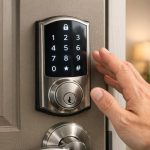

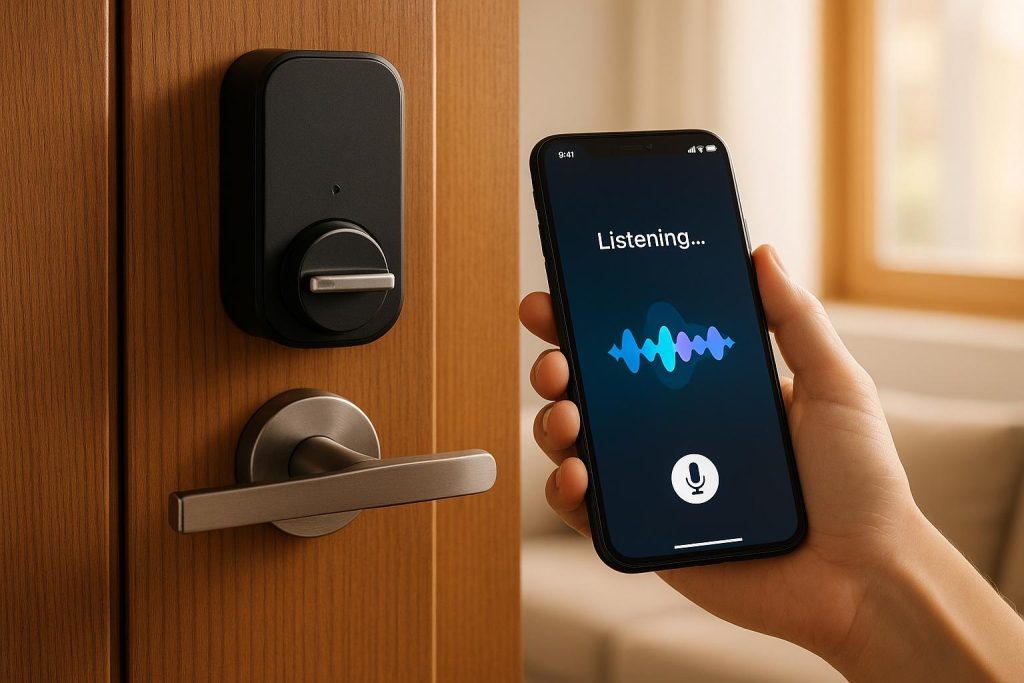
Smart locks paired with voice assistants like Alexa, Google Assistant, or Siri make securing your home easier and more efficient. With just a voice command, you can lock doors, check their status, or integrate them into automated routines. To connect a smart lock to a voice assistant, follow these steps:
- Check Compatibility: Ensure your smart lock supports your chosen voice assistant (e.g., Alexa, Google Assistant, or Siri/HomeKit). Some locks may require a hub or bridge for full functionality.
- Set Up the Lock: Install and configure your lock using its native app. Test all features like locking, unlocking, and auto-lock before pairing.
- Link to Voice Assistant: Use your assistant’s app (Alexa, Google Home, or HomeKit) to add the lock. Enable the lock’s skill or service and sign in with your lock’s app credentials.
- Secure Access: For unlocking by voice, create a unique PIN code. Adjust settings to limit access and enhance security.
- Automate Routines: Add locks to routines like “Goodnight” or “Leaving Home” to combine actions like locking doors, turning off lights, and adjusting the thermostat.
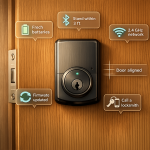
For troubleshooting, keep firmware updated, ensure strong Wi-Fi near the lock, and check for mechanical alignment issues. In Pittsburgh, PA, professional services like Sherlock’s Locksmith can assist with installation, integration, and repairs. With proper setup, smart locks and voice assistants can simplify your daily life while enhancing home security.
How to link your Philips smart locks with Amazon Alexa & Google Assistant
Preparation and Compatibility Checks
Before diving into setup, it’s crucial to ensure your smart lock, voice assistant, and network work well together. This step is key to making sure everything functions smoothly and securely.
Check Lock-Assistant Compatibility
Not all smart locks are designed to work with every voice assistant. To avoid frustration, confirm that your lock officially supports Amazon Alexa, Google Assistant, or Apple HomeKit and Siri, depending on your preferred platform.
Look for labels like "Works with Amazon Alexa", "Works with Google Assistant", or "Works with Apple HomeKit" on the product box or online listing. Without this certification, some features might not be available.
Visit the lock manufacturer’s website to check compatibility with specific assistants and the required wireless protocols – such as Wi‑Fi, Bluetooth, Z‑Wave, Zigbee, or Thread. Some locks may also need a hub or bridge to connect to your network, so verify whether you’ll need to buy additional hardware.
- Amazon Alexa has the broadest compatibility, supporting brands like August, Yale, Schlage, Kwikset, and more.
- Google Assistant works well with major names such as Nest x Yale, August, Schlage, and Ultraloq.
- Apple HomeKit has fewer compatible brands but emphasizes stricter security standards and local processing.
If your lock requires a hub (like a Z‑Wave or Zigbee bridge), ensure you already have one or are ready to purchase it. Locks with built-in Wi‑Fi or Bluetooth often skip the need for extra hardware, but they may need a strong Wi‑Fi signal near your door.
Don’t forget about regional compatibility. Make sure your lock supports U.S. Wi‑Fi bands (2.4 GHz and, if applicable, 5 GHz) and follows North American smart home standards.
Set Up the Smart Lock’s Native App
The manufacturer’s app is the backbone of your smart lock system. Voice assistants connect to the lock through this app, not directly to the hardware. If the lock isn’t fully set up in its app, your voice assistant won’t be able to find or control it.
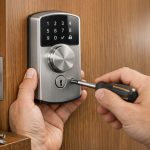
Start by installing the lock according to the manufacturer’s instructions. Address any alignment issues right away to ensure smooth operation.
Next, download the app from the App Store or Google Play, create an account, and pair the lock with your smartphone. Most locks use Bluetooth for initial pairing, while some Wi‑Fi models connect directly to your home network during setup.
After pairing, test all features – locking, unlocking, battery indicators, auto-lock, and PIN codes. Walk around your home to check if the lock responds from typical distances. If connectivity drops in certain spots, you may need to boost your Wi‑Fi signal or reposition your hub.
Many smart locks include an auto-calibration process to define the locked and unlocked positions. Run this calibration, and repeat it if needed. Skipping this step can cause alignment problems that interfere with voice commands.
Only move on to integrating your voice assistant once the lock works perfectly through its app. Troubleshooting is much easier when the lock itself is functioning as it should.
Apply Security Best Practices
When connecting a smart lock to a voice assistant, the security of your accounts and networks becomes critical. Take these steps to protect against unauthorized access:
- Use strong, unique passwords (12+ characters, with a mix of letters, numbers, and symbols) for your lock, voice assistant, and Wi‑Fi accounts. Avoid reusing passwords across services.
- Enable two-factor authentication (2FA) wherever possible. This adds an extra layer of security by requiring a one-time code in addition to your password.
- Keep your lock’s firmware and voice assistant apps updated. Manufacturers release updates to fix vulnerabilities and improve performance. Check for updates in the lock’s app and enable automatic updates if available.
For voice unlocking, set a unique spoken PIN or disable the feature entirely if security is a concern.
Review your voice assistant’s household and voice profile settings. Platforms like Alexa and Google Assistant can recognize individual voices, so you can limit sensitive commands to trusted users. If your assistant device is near a door or window, consider moving it farther inside to prevent someone outside from issuing commands.
Regularly audit third-party apps and services linked to your smart lock account. Remove any you no longer use or don’t recognize. Check the lock’s activity log (if available) to monitor who’s locking and unlocking the door and when. Unusual activity could signal a compromised account.
If you’re unsure about any part of the setup or security process, professional help is an option. For example, in Pittsburgh, PA, Sherlock’s Locksmith offers installation, repair, and smart lock integration services. Their certified technicians can handle alignment issues, calibration, and secure configuration, ensuring your lock is ready to pair with Alexa, Google Assistant, or Siri. They can also assist with integrating locks into broader home security systems to avoid gaps caused by improper setup.
Once compatibility is confirmed and security measures are in place, you’re ready to connect your lock to your voice assistant.
Connecting Smart Locks to Amazon Alexa
Alexa works seamlessly with smart locks from popular brands like August, Yale, and Schlage. Once connected, you can lock your doors, check their status, and even unlock them remotely using voice commands – all while managing other smart home devices within the same system.
Enable the Lock in Alexa
Before diving into Alexa, make sure your smart lock is fully functional through its native app. Once confirmed, follow these steps to connect it to Alexa using the manufacturer’s skill. This skill allows Alexa to communicate with your lock.
- Open the Alexa app on your smartphone and tap Devices at the bottom of the screen.
- Tap the "+" icon in the upper right corner and choose Add Device.
- Select Lock as the device type. A list of supported brands will appear – choose your lock’s manufacturer, such as August, Yale, Schlage, or Kwikset.
Next, Alexa will prompt you to enable the manufacturer’s skill. Tap Enable to Use, and you’ll be redirected to a login screen. Sign in using the credentials from your lock’s native app. This step links your lock to Alexa, giving the assistant the ability to control it.
Once authorized, Alexa will search for devices associated with your account. When your lock appears in the discovery results, assign it a clear name and location for easy management.
Your lock will now show up under Devices → Locks in the Alexa app. Test the connection by tapping the lock icon to lock the door or saying, "Alexa, lock the front door." If the lock responds, the integration is complete.
Now that your lock is connected, you can set up voice controls for unlocking while ensuring security measures are in place.
Configure Unlock by Voice
While Alexa can lock your door right away, unlocking requires extra setup for security reasons. This prevents unauthorized access through simple voice commands.
- In the Alexa app, go to Devices, select Locks, and tap on your lock.
- Look for a setting like Unlock by Voice, Remote Unlock, or Voice Code (the name may vary by brand). Toggle it on, and Alexa will prompt you to create a numeric PIN – usually four digits or longer.
Choose a PIN that’s unique and not easily guessed. Avoid obvious choices like 1234 or repeating numbers, and don’t reuse codes from alarms, phones, or other devices. Test the setup by saying your PIN when prompted to unlock.
For added security, limit which Echo devices can perform unlocks. For example, avoid enabling this feature on an Echo placed near a window or in a shared space. Adjust these permissions in the Alexa app under Settings → Device Settings.
Once your unlock feature is configured, you can take things a step further by integrating your lock into Alexa routines.
Add Locks to Routines
Alexa routines streamline your smart home by automating multiple actions with a single command or trigger. Adding your smart lock to routines like "Goodnight" or "Leaving Home" ensures your doors are secured alongside other tasks.
- In the Alexa app, tap More (the three horizontal lines in the lower right corner) and select Routines.
- Tap the "+" icon to create a new routine and give it a name, such as "Goodnight" or "I’m Leaving."
- Choose a trigger for the routine – this could be a voice command, a schedule, or a device state.
Under Add action, select Smart Home, then Control device. Pick your smart lock and set Lock as the action. If you have multiple locks, you can add them all. You can also include other actions, like turning off lights, adjusting the thermostat, or arming your security system.
Save the routine and test it by saying your trigger phrase. For example, saying "Alexa, goodnight" could lock all exterior doors, turn off lights, and set the thermostat to your ideal sleeping temperature. Similarly, a "Leaving Home" routine triggered by "Alexa, I’m leaving" could secure the doors, turn off lights, and switch the thermostat to an energy-saving mode.
If Alexa struggles to discover your lock, fails to respond to commands, or if the lock itself has mechanical issues like jamming, it might be time to get professional help. In Pittsburgh, PA, Sherlock’s Locksmith offers smart lock installation, troubleshooting, and integration services. Their certified technicians can handle alignment problems, firmware updates, and secure configuration to ensure smooth operation with Alexa and other voice assistants.
Connecting Smart Locks to Google Assistant
Setting up your smart lock to work with Google Assistant is similar to connecting it with Alexa. It involves configuring the app and ensuring your security settings are solid. Google Assistant supports popular smart lock brands like August, Yale, Schlage, and Kwikset, enabling features like locking, checking lock status, and even unlocking with voice commands.
Add the Lock to Google Home
Before you begin, make sure your smart lock is functioning properly through its native app and supports remote access. Many locks require either a Wi-Fi bridge or built-in Wi-Fi to connect with Google’s cloud services.
Here’s how to get started:
- Open the Google Home app on your smartphone. Tap the "+" icon in the top left corner.
- Select Set up device and then choose Works with Google.
- Use the search bar to find your lock’s manufacturer, such as "Schlage", "Yale", "August", or "Kwikset." Tap the correct service to start linking.
- When prompted, sign in using the same credentials you used to set up the lock in its native app. This step gives Google permission to access and control your lock remotely.
- Once linked, the app will search for devices associated with your account. When your lock appears, assign it to a specific room with a clear name like "Front Door" or "Garage Entry."
After setup, test the connection by tapping the lock icon in the app to lock the door or saying, "Hey Google, lock the front door." Once confirmed, proceed to secure the lock with a unique PIN for added safety.
Set Up Security Passcodes
While locking your door with Google Assistant is immediate, unlocking requires extra security – a PIN code. This ensures no one can misuse voice commands to unlock your door, even if they overhear you.
To enable voice unlocking, activate the Unlock by Voice feature. This can be done in the Google Home app or your lock’s native app. Once enabled, create a secure 4-digit PIN. Avoid easy-to-guess combinations like "1234", repeated digits, or personal dates. Test the feature by saying, "Hey Google, unlock the front door," and entering your PIN when prompted.
For added security, update or change the PIN after sharing it with temporary guests like contractors or house sitters. Experts suggest keeping the voice PIN private and using separate user codes programmed directly into the lock for children or visitors. This way, the voice PIN is reserved for trusted adults.
Some users opt to skip voice unlocking altogether, relying on manual unlocking through the Google Home app instead. This requires unlocking your phone first, adding an extra layer of security.
Example Voice Commands
Once your smart lock is connected and secure, you can control it with a range of Google Assistant commands. These commands work across devices linked to your Google account, including smartphones, Nest speakers, and smart displays.
- To lock the door, say: "Hey Google, lock the front door." If you have multiple locks, you can lock them all by saying, "Hey Google, lock all the doors."
- To check the lock’s status, ask: "Hey Google, is the front door locked?" or "Hey Google, is the back door unlocked?" Google Assistant will provide real-time updates based on the lock’s data.
- To unlock the door (if enabled), say: "Hey Google, unlock the front door." Google will ask for your 4-digit PIN before proceeding.
You can also integrate your locks into Google Home routines for automated actions. For example:
- Create a "Goodnight" routine that locks all exterior doors, turns off lights, and adjusts the thermostat when you say, "Hey Google, goodnight."
- Set up a "Leaving Home" routine triggered by "Hey Google, I’m leaving," which can lock doors and switch the thermostat to energy-saving mode.
To set up routines, open the Google Home app, tap Routines, and add your lock under Adjust Home Devices.
If you encounter issues like Google Assistant failing to discover your lock, unresponsive commands, or mechanical problems such as jamming or misalignment, professional assistance may be necessary. For residents in Pittsburgh, PA, Sherlock’s Locksmith offers expert services, including smart lock installation, troubleshooting, and integration. Their certified technicians can ensure proper installation, update firmware, and verify that your lock is functioning seamlessly with Google Assistant.
sbb-itb-643e28e
Connecting Smart Locks to Apple HomeKit and Siri
Apple’s HomeKit ecosystem offers a privacy-focused way to control your smart home, and pairing your smart lock with Siri adds the convenience of voice commands while keeping your data secure. HomeKit stands out for its emphasis on local processing and minimal data collection, which appeals to privacy-conscious homeowners. However, keep in mind that HomeKit supports fewer devices compared to other platforms, so it’s crucial to confirm that your lock is compatible before starting.
Pair the Lock with HomeKit
First, check that your smart lock is labeled "Works with Apple HomeKit" – you’ll usually find this on the packaging or in the product specifications. Popular options include locks from August, Yale, and certain Schlage models.
The pairing process revolves around the HomeKit setup code, an 8-digit number or QR code. This code is typically located on the lock, its mounting plate, battery cover, or the original packaging. Make note of this code before installation to avoid any hassle later.
To pair your lock:
- Open the Home app on your iPhone or iPad.
- Enable Bluetooth and Wi-Fi, and ensure you’re signed into iCloud.
- Tap the "+" in the top-left corner, choose "Add Accessory," and scan or manually enter the 8-digit setup code.
Once detected, assign the lock to a specific room in your home, like "Entryway" or "Garage", and give it a unique name such as "Front Door" or "Back Door Lock" to avoid confusion with Siri commands. After setup, test the connection by tapping the lock icon in the Home app or saying, "Hey Siri, lock the front door."
If pairing issues arise, ensure your iPhone is within Bluetooth range, and check that the lock’s firmware is updated using its native app.
Set Up Siri Commands
Once your lock is paired, you can control it through Siri on various Apple devices, including iPhone, iPad, Apple Watch, HomePod, or Mac. Use commands like:
- "Hey Siri, lock the front door."
- "Hey Siri, lock all the doors."
- "Hey Siri, is the front door locked?"
For unlocking, Apple adds an extra layer of security. You’ll need to confirm unlock requests using Face ID, Touch ID, or your device passcode on your iPhone or Apple Watch. This prevents someone from shouting commands through a window or door. Many homeowners prefer to use voice commands for locking and status checks, reserving unlocks for direct control via their devices.
You can also incorporate your lock into HomeKit scenes for automation. For instance, a "Goodnight" scene could lock all exterior doors, turn off lights, and adjust the thermostat when you say, "Hey Siri, goodnight." To set this up, open the Home app, tap the "+" button, select "Add Scene," and choose the devices and actions you want. If you’d like even more customization, use the Shortcuts app to create unique voice commands like "Hey Siri, we’re leaving," which could lock the front door and activate other devices.
The Home app also provides activity logs and notifications for your lock. For example, you might get an alert like, "Front Door was locked at 8:02 PM", helping you keep tabs on activity at home.
HomeKit Hubs and Automation
To unlock the full capabilities of your HomeKit smart lock, you’ll need a Home hub. A Home hub (such as an Apple TV, HomePod, or iPad) connects to your home Wi-Fi and acts as a secure bridge between your lock and your iPhone when you’re away. With a hub, you gain remote access to your lock, allowing you to check its status or lock/unlock it from anywhere. It also enables automations like time-based or presence-based locking.
Without a hub, your lock will only work when your iPhone is connected to the same Wi-Fi network and within Bluetooth or Thread range. Setting up a Home hub is straightforward:
- Sign in to your Apple TV, HomePod, or iPad with the same Apple ID used for the Home app.
- On Apple TV or HomePod, the device will automatically act as a Home hub. For an iPad, go to Settings → Home and enable "Use this iPad as a Home Hub."
Ensure the device stays connected to Wi-Fi and is plugged into power for continuous operation.
Once your hub is active, you can create automations in the Home app. Tap the Automation tab, then tap the "+" to add a new automation. Choose triggers like "A time of day occurs," "When I leave," or "When the last person leaves home." For example, you can set your lock to secure all exterior doors at 11:00 PM every night or lock the front door when your iPhone detects you’ve left home.
Test these automations to ensure they work as expected. For safety, avoid fully automatic unlocking based solely on presence. Always keep manual keys or a backup method handy in case of power or network outages.
If you run into issues – like Siri not responding to commands, the lock being out of Bluetooth range, or mismatched Apple IDs – start by checking the lock’s battery, updating its firmware, and verifying your Wi-Fi and hub setup. Physical problems, like doors that stick or misaligned deadbolts, can also affect performance. In such cases, homeowners in Pittsburgh, PA, might consider contacting a professional locksmith like Sherlock’s Locksmith for help with adjustments, rekeying, or mechanical inspections.
To ensure your smart lock setup remains secure, enable strong iPhone security features like Face ID or Touch ID, carefully manage Home sharing to limit access to trusted individuals, and periodically review your Home app settings. Combining these steps with regular firmware updates and professional evaluations of your lock’s physical condition can help you enjoy both the convenience and safety of using Siri and HomeKit to manage your smart locks.
Troubleshooting Common Integration Issues
Even with a solid setup, hiccups can still occur. You might notice your voice assistant struggling to detect the lock, commands timing out, or voice commands working inconsistently. Knowing how to troubleshoot these issues can save you both time and hassle.
Connectivity Problems
Connectivity snags are the most common reason for issues between smart locks and voice assistants. If your lock works fine in its native app but not through the voice assistant, the problem likely lies in the integration.
Start by ensuring your lock is connected to a 2.4 GHz Wi‑Fi network, as many smart locks don’t support 5 GHz. If your lock uses Bluetooth, check that it’s enabled on your phone and that you’re within range during setup. For Z‑Wave or Zigbee locks, make sure you have a compatible hub like SmartThings or Ring Alarm.
A weak Wi‑Fi signal near your door can also cause disruptions. Consider moving your router closer, adding a Wi‑Fi extender or mesh node, or repositioning the lock’s hub if it uses one. Reboot your router, hub, and lock by unplugging them for 30 seconds, then test the setup again.
If problems persist, try removing and re-adding the lock in your voice assistant app, following the manufacturer’s instructions. Confirm that you’re logged into the correct account in both the lock’s app and the voice assistant app.
Intermittent issues might be caused by overloaded routers or devices using power-saving modes. Separating your 2.4 GHz and 5 GHz networks into different SSIDs can help keep the lock on the right band. Also, avoid plugging the lock’s hub into a surge protector, as this can introduce interference.
If unlock commands fail while lock commands work, check that "unlock by voice" is enabled in the lock’s settings and that you’ve set up a spoken PIN code. Make sure the lock is assigned to the correct home and room in your assistant app as well.
Battery and Firmware Checks
Once your lock is integrated, regular battery and firmware checks are key to keeping it running smoothly. Low batteries can lead to delayed responses, missed updates, or even complete failures in remote or voice control. Monitor the battery level through the lock’s app and replace them promptly when low.
Use high-quality alkaline batteries as recommended, and avoid mixing old and new ones. Setting a calendar reminder based on the expected battery life (usually 6 to 12 months) can help you stay ahead of power issues.
After replacing batteries, some locks require recalibration. If your lock’s app has a calibration option, follow it to ensure the deadbolt operates smoothly.
Firmware updates are just as important. These updates often fix bugs, improve wireless performance, and address security concerns. Check for updates in the lock’s app regularly, and install them when the door is unlocked and closed. Stay near the lock with a charged device until the update is complete.
Once updated, test your voice commands again and rediscover the lock in your voice assistant app. Also, keep your voice assistant app – whether Alexa, Google Home, or Apple Home – up to date to avoid assistant-side glitches.
When to Call a Locksmith
If you’ve replaced batteries, updated firmware, rebooted your network, and re-added the integration without success, the issue might be mechanical. Signs of mechanical trouble include the deadbolt sticking, the motor straining or stopping mid-motion, frequent "jammed" alerts, or the lock working with a key but not electronically.
Problems like misaligned doors, warped frames, or poorly drilled bolt holes can strain the motor, causing rapid battery drain and failed remote operations. To check for these issues, manually turn the deadbolt with the door closed. If it feels tight, grinds, or binds, there’s likely a mechanical problem. Inspect the strike plate alignment, door frame, and weatherstripping.
For minor issues, you can try tightening screws or repositioning the strike plate. But if the problem persists, it’s time to call a professional. A locksmith can help if the lock jams frequently, fails to operate after battery replacements and resets, or shows visible damage to the lock or door frame.
A trusted locksmith, like Sherlock’s Locksmith in Pittsburgh, PA, can address these issues. They can realign doors, adjust or replace strike plates, re-install or upgrade your smart lock, and ensure the system integrates seamlessly with your hardware. Sherlock’s Locksmith also provides 24/7 mobile service for emergencies, like lockouts or when a malfunctioning smart lock keeps you from entering your home. They can even recommend compatible smart locks and hubs for Alexa, Google Assistant, or Siri setups.
Experienced locksmiths can spot less obvious problems, such as low-quality hardware, mismatched latch depths, or an improper backset that puts extra stress on the lock motor. They can also ensure wired components get the power they need and verify that the lock’s installation meets manufacturer specifications. For homeowners relying on voice assistants, professionals like Sherlock’s Locksmith can create a well-planned setup – including lock placement, hub location, and signal boosters – to ensure everything works smoothly.
"Sherlock’s Locksmith stands as your premier destination, offering comprehensive solutions for all your locking and security requirements. Whether it’s repairs, installations, upgrades, or maintenance, our round-the-clock locksmith crew ensures unparalleled excellence."
With an impressive 4.9-star rating from 122 Google reviews, Sherlock’s Locksmith is highly rated for professionalism, punctuality, and fair pricing. Their certified technicians are trained in advanced technologies, including electronic and keyless systems, and can reliably diagnose and resolve hardware-related issues.
Conclusion
Integrating your smart lock with Alexa, Google Assistant, or Siri can take your home security and convenience to the next level. By following a few straightforward steps – checking compatibility, setting it up through the lock’s app, linking it to your voice assistant, enabling secure PIN access, and testing automation – you can enjoy hands-free control. Imagine locking your front door while juggling groceries, checking the lock status from the office, or managing family access remotely, all with just a voice command or tap on your phone.
To ensure everything runs smoothly, prioritize security. Use a strong, unique PIN for remote unlocking, keep your firmware and app updated, enable two-factor authentication on your accounts, and regularly review activity logs to catch any unusual access attempts. Voice assistant platforms like Alexa, Google Home, and HomeKit come with built-in safeguards to prevent unauthorized unlocking. For extra peace of mind, you can limit voice commands to locking only and require physical or in-app confirmation for unlocking.
In older or multi-unit homes, like those often found in Pittsburgh, choosing the right smart lock and installing it properly can be tricky due to varying door hardware and weather conditions. If you encounter challenges, whether with installation or integration, reaching out to a professional can save time and frustration. This is especially true for more complex setups involving multiple locks, mixed platforms, or integration with broader security systems.
For expert assistance, Sherlock’s Locksmith in Pittsburgh, PA, offers professional smart lock installation, secure voice assistant integration, troubleshooting, and 24/7 emergency services. They can help you select the perfect lock for your door and ecosystem, ensure proper installation, integrate it securely with Alexa, Google Assistant, or Siri, and address any technical or mechanical issues.
"Sherlock’s Locksmith stands as your premier destination, offering comprehensive solutions for all your locking and security requirements. Whether it’s repairs, installations, upgrades, or maintenance, our round-the-clock locksmith crew ensures unparalleled excellence."
Whether you’re setting up your first smart lock or upgrading your current system, these steps will help you achieve a balance of security and convenience. With a solid setup and professional guidance, your smart lock system can provide reliable voice control and peace of mind.
FAQs
Why isn’t my smart lock responding to voice commands?
If your smart lock isn’t responding to your voice assistant, there are a few things you can check to troubleshoot the issue:
- Power Supply: Make sure the batteries in your smart lock are either fully charged or have been recently replaced. Weak or dead batteries can often be the culprit.
- Wi-Fi Connection: Verify that both your smart lock and voice assistant are connected to the same Wi-Fi network, and ensure the signal strength is strong enough for proper communication.
- Voice Assistant Settings: Double-check that the smart lock is correctly linked to your voice assistant and that all necessary permissions are enabled.
If these steps don’t resolve the problem, it might be time to call in an expert. Sherlock’s Locksmith, based in Pittsburgh, PA, offers professional help with smart lock troubleshooting and other lock-related issues. Their technicians are available 24/7 to ensure your locks are functioning smoothly again.
How can I make sure my smart lock stays secure when using a voice assistant to unlock it?
To keep your smart lock secure while using a voice assistant, start by enabling two-factor authentication (2FA) on your voice assistant account. This simple step adds an extra barrier, making it harder for anyone to gain unauthorized access.
Next, set up a PIN or voice code for unlocking your smart lock. Most voice assistants let you create a custom PIN, ensuring your lock won’t open accidentally or without proper authorization.
Finally, don’t overlook the importance of updates. Regularly update both your smart lock’s firmware and the voice assistant app to stay protected with the latest security fixes. If you’re unsure about the setup or need expert advice, consider contacting a trusted professional, like Sherlock’s Locksmith, for reliable assistance.
How can I fix connectivity issues between my smart lock and voice assistant?
If your smart lock isn’t connecting to your voice assistant, here are some steps you can take to troubleshoot the problem:
- Check your Wi-Fi connection: Make sure both your smart lock and voice assistant are on the same Wi-Fi network, and ensure the signal strength is sufficient. Weak signals can cause connectivity issues.
- Restart your devices: Turn off and then power back on your smart lock, voice assistant device, and router. This can help refresh the connections and resolve minor glitches.
- Confirm compatibility: Double-check that your smart lock works with the voice assistant you’re trying to use. Not all devices are designed to integrate seamlessly.
- Update software: Ensure that your smart lock, voice assistant, and their corresponding apps are all updated to the latest software versions. Outdated firmware can cause integration problems.
- Re-link your accounts: Disconnect your smart lock from the voice assistant app and reconnect it. This reset can often resolve lingering connection issues.
If none of these steps work, refer to your smart lock’s user manual for more detailed instructions. For further help, you might want to contact a professional locksmith, like Sherlock’s Locksmith, for expert advice and support.